

A gift wrapping fee is an optional charge a customer adds to their order when they want an item wrapped. Shopify has no built-in setting for it, so many stores either wrap for free or sell a separate "gift wrap" product that customers forget to add.
This post shows how to add a gift wrap checkbox to your cart with Bony Surcharge & Tariff Fees. It appears as Bony Fees & Surcharge in Shopify Admin. You'll start from the Gift wrap service template, set a price, and test the result.
For the bigger picture on optional extras, read How to sell paid add-ons on Shopify.
When does a gift wrapping fee make sense?
A gift wrapping fee makes sense when wrapping costs you real time or materials and only some customers want it. Charging a small amount covers paper, ribbon, cards, and labor without raising product prices for everyone.
It works best when:
- You wrap items by hand or use branded packaging.
- Gifting is a large share of your orders, such as around the holidays.
- You can describe the service in a few words, such as "Gift wrap with ribbon".
If you ship every order in premium packaging, build that cost into your prices instead. A fee is for a choice the customer makes.
Before you start
You'll need:
- Bony Surcharge & Tariff Fees installed.
- A Bony plan that fits your setup. The Free plan supports Online Store fees for up to 10 paid orders with a Bony fee per month, but has no conditions. Starter and higher unlock conditions, POS, and Draft Orders. Check the Shopify App Store listing for current plan details.
- Access to your Online Store theme editor, so you can switch on the Bony app embed.
- A product you can add to the cart for testing.
Shopify Plus is not required for the cart checkbox. Plus is only needed if you want the checkbox inside Shopify Checkout instead.
Product fee or order fee?
Choose Product fee if each item is wrapped separately. Choose Order fee if the whole order is wrapped once, for example in a single gift box.
| Fee scope | Charged | Best for |
|---|---|---|
| Product fee | Per matching item in the cart | Wrapping each product on its own |
| Order fee | Once per order | One gift box or one wrapping service per order |
The Gift wrap service template starts as a Product fee priced at 4.99 in your store currency. You can change both before saving.
Step 1: Open the Gift wrap service template
In Shopify Admin, open Bony Fees & Surcharges. On the Home page, scroll to Recommended fee templates and select Gift wrap service.
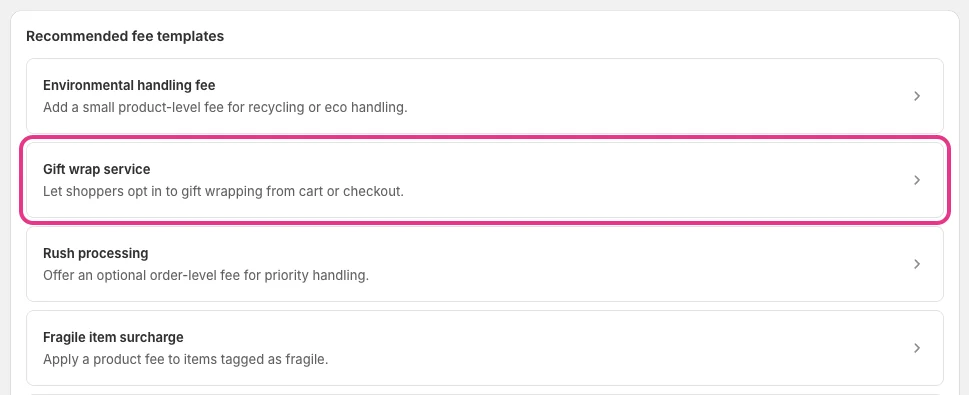
The template opens a prefilled Create fee form. Nothing is saved until you click Save.
Step 2: Set the fee scope and amount
Under Fee details, the template fills in:
- Fee display name: Gift wrap service
- Fee scope: Product fee
- Amount type: Fixed
- Amount: 4.99
Change Fee scope to Order fee if you wrap the whole order once. Set Amount to what wrapping costs you plus a margin. Use Percentage only if the price should scale with the item's price, which is unusual for gift wrap.
For a Product fee, Group product fee by controls how often the fixed amount is charged:
- Cart line quantity charges the fixed amount for every matching cart line quantity. This is the template default.
- Variant charges once per matching variant, whatever the quantity.
- Product charges once per matching product, across variants and quantities.
Example: a customer buys 2 candles at $24.00 each and opts into gift wrap. With Cart line quantity, the fee is 2 × $4.99 = $9.98, so the cart is $48.00 + $9.98 = $57.98. With Product, the fee is $4.99 once, so the cart is $52.99.
Step 3: Choose how shoppers see the fee
Under Shopper choice, keep Display as set to Checkbox. Shoppers tick the fee in the cart to add it. The template uses:
- Prompt: Add gift wrap?
- Help text: Gift wrapping is added to eligible items in this order.
- Checkbox label: Add gift wrap
Edit the copy so it matches your service. A clear prompt such as "Add gift wrap?" tells shoppers what the checkbox does. You can use the shortcodes {{ fee_name }} and {{ fee_amount }} in Prompt and Help text to show the fee name and price. Leave Require shoppers to choose this fee unchecked, or every shopper would have to tick it to check out.
Step 4: Limit gift wrap to the right products
By default, the template has no conditions, so the checkbox can appear next to every product. To limit it to giftable items, open Popular conditions and add one of these:
- Products to pick specific products.
- Collections to match a collection, such as "Gifts".
- Product tags to match a tag, such as
giftable.
Conditions need a paid Bony plan. On the Free plan, gift wrap applies to every product, or you can use an Order fee so it appears once in the cart.
Step 5: Save the fee and enable the app embed
- Set Status to Active.
- Under Sales channels, select Online Store.
- Click Save.
- Return to the Bony Home page and, in App embed status, click Enable. The theme editor opens on App embeds.
- Check that Bony Product Fees & Surcharge is switched on, then click Save in the theme editor.
You only need to enable the app embed once per theme.
Step 6: Test gift wrap in your cart and checkout
Open your storefront, add a gift product to the cart, and look for the Add gift wrap checkbox in the cart drawer or on the cart page.
- Tick the checkbox. The product line and the cart total rise by the gift wrap fee. In our test, a $9.99 item became $14.98.
- Untick it. The total drops back.
- Click Check out. In the order summary, the product line shows the combined price. Expand it to see the item and Gift wrap service as separate entries with their own prices.
- Try a quantity of 2 to confirm the fee matches the Group product fee by setting you chose.


Test with your real currencies, discounts, and shipping options. Add-on pricing in the cart should match what the customer pays.
Tips for a gift wrap fee customers accept
- Keep the price modest. Many customers expect gift wrap to be cheap. Price it at cost plus a small margin.
- Name it plainly. "Gift wrap" is clearer than "Packaging service".
- Show it before checkout. The checkbox in the cart means the price is no surprise at payment.
- Mention your cutoff dates. Say on your shipping page when gift orders must be placed for holiday delivery.
- Wrap what you promise. If you only wrap some products, use conditions so the checkbox does not appear on items you cannot wrap.
What this setup does not do
Bony's gift wrap checkbox adds a priced fee. It does not collect a gift message, choose a wrapping style, or send the message to your fulfillment team. If you need a message, use a product or line item property from your theme, and say so in your help text. For a related optional service, see how to set up rush handling fees.
Related reading
- How to add product fees on Shopify explains when item-level charges beat order-level ones.
- How to set up a small order fee on Shopify walks through the same fee editor with screenshots.
- Bony Surcharge & Tariff Fees lists plans and features.
FAQ
How do I add a gift wrapping fee on Shopify?
Shopify has no built-in gift wrap fee. With Bony Surcharge & Tariff Fees, open the Gift wrap service template, set the Amount, keep Display as on Checkbox, and save. Shoppers then tick Add gift wrap in the cart and the fee is added to their total.
Should gift wrap be a Product fee or an Order fee?
Use a Product fee if you wrap each item separately. Use an Order fee if you wrap the whole order once. The template starts as a Product fee, and you can change Fee scope.
Do I need Shopify Plus to charge for gift wrap?
No. Online Store fees work on any Shopify plan. Shopify Plus is only needed if you want the checkbox inside Shopify Checkout instead of the cart.
Can I limit gift wrap to certain products?
Yes. Add a Products, Collections, or Product tags condition under Popular conditions. Conditions need a paid Bony plan, because the Free plan has no conditions.
Can I make gift wrap required?
You can, but it is rarely a good idea. Require shoppers to choose this fee blocks checkout until the checkbox is ticked. Gift wrap is an optional service, so keep it off.