
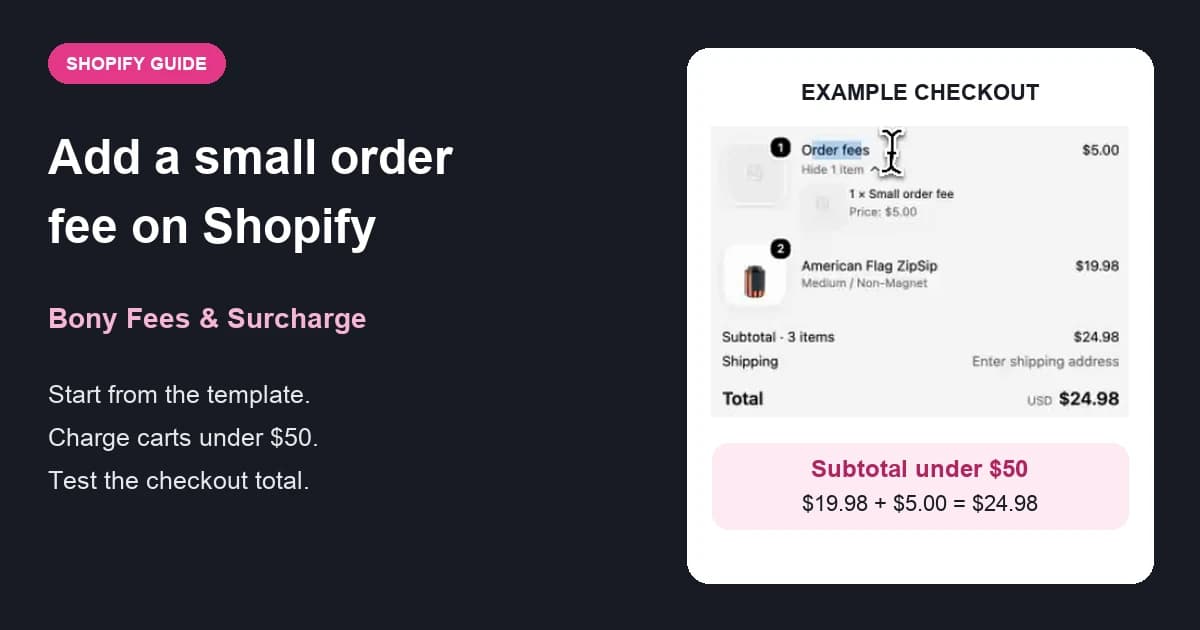
A small order fee helps cover packing, handling, and payment costs on low-value orders. It should only appear while the cart is below your minimum, and it should be clear to the shopper before they pay.
This guide shows how to set one up with Bony Fees & Surcharge. You'll start from the Small order fee template, review the fee, set a Cart subtotal condition, and turn on the Bony app embed in your theme.
The walkthrough uses the template defaults: a $5.00 fee for carts with a subtotal under $50. In the recorded test, two items at $9.99 bring the cart to $19.98, and the fee brings the checkout total to $24.98 before shipping and tax.
Before you start
You'll need:
- Bony Fees & Surcharge installed in Shopify Admin.
- A Bony plan that includes fee conditions (Starter or higher). Templates with prefilled conditions are disabled on the Free plan.
- Access to your Online Store theme editor, so you can turn on the Bony app embed.
- A product you can add to the cart for testing.
Shopify Plus is not required. This setup uses the Online Store sales channel, not a checkout app block.
Watch the 2-minute walkthrough
Download the English subtitles.
Step 1: Open the Small order fee template
In Shopify Admin, open Bony Fees & Surcharge. On the Home page, scroll to Recommended fee templates and select Small order fee.
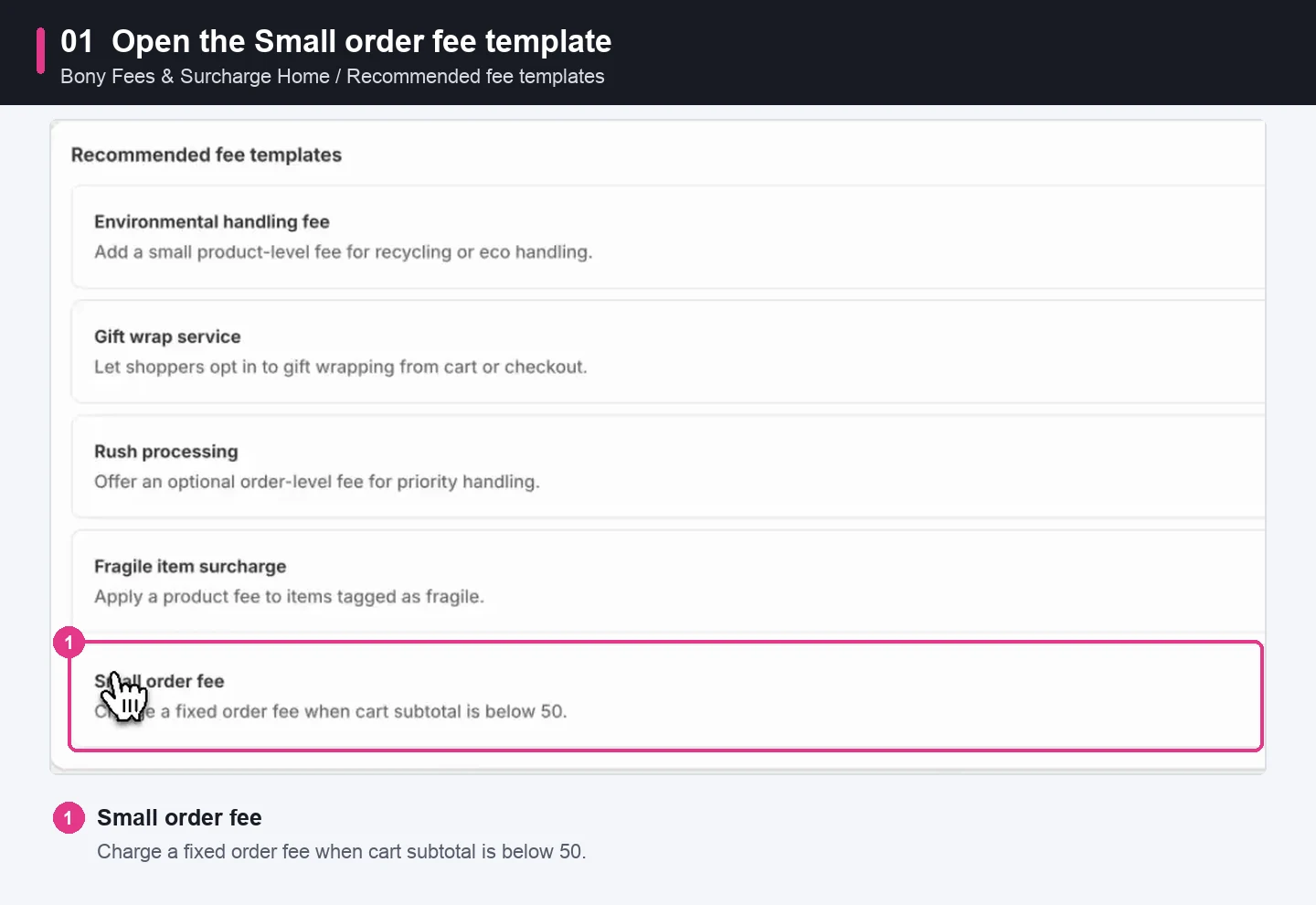
The template opens a prefilled Create fee form. Nothing is saved until you click Save.
Step 2: Review the fee details
Under Fee details, the template fills in:
- Fee display name: Small order fee
- Checkout group title: Order fees
- Fee scope: Order fee, so the charge applies once per order
- Amount type: Fixed
- Amount: 5.00
Change the name or amount to suit your store.
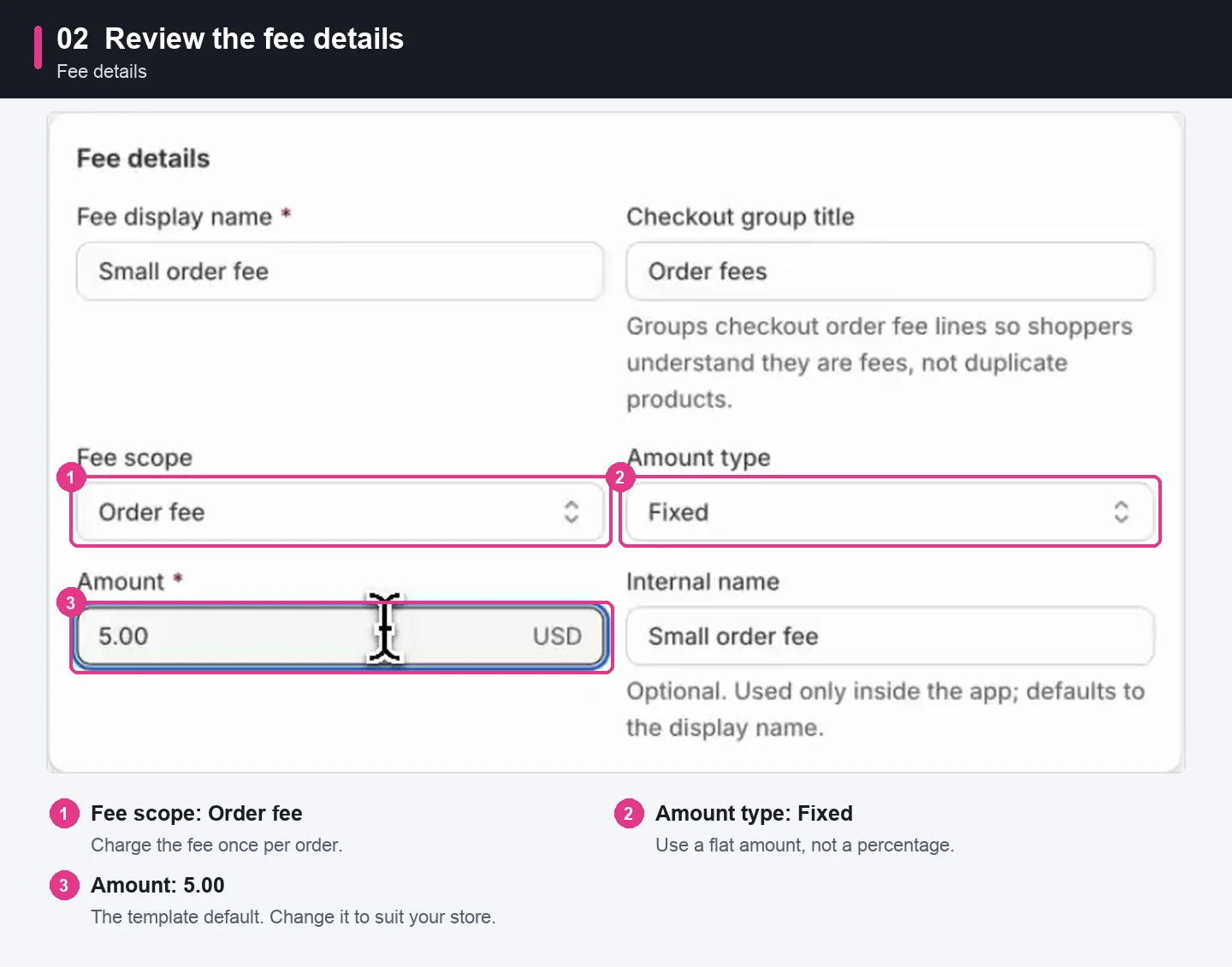
The checkout group title groups Bony fee lines in the order summary, so shoppers can see they are fees.
Step 3: Choose how shoppers see the fee
Under Shopper choice, keep Display as set to Checkbox. Shoppers see the fee in the cart and add it by selecting the checkbox.
You can also select Require shoppers to choose this fee. Checkout is then blocked until the shopper selects the checkbox. The recording turns this option on.
Review the Prompt, Help text, and Checkbox label. The template uses:
- Prompt: Add small order handling?
- Help text: This fee is added only after you choose it.
- Checkbox label: Add small order handling fee
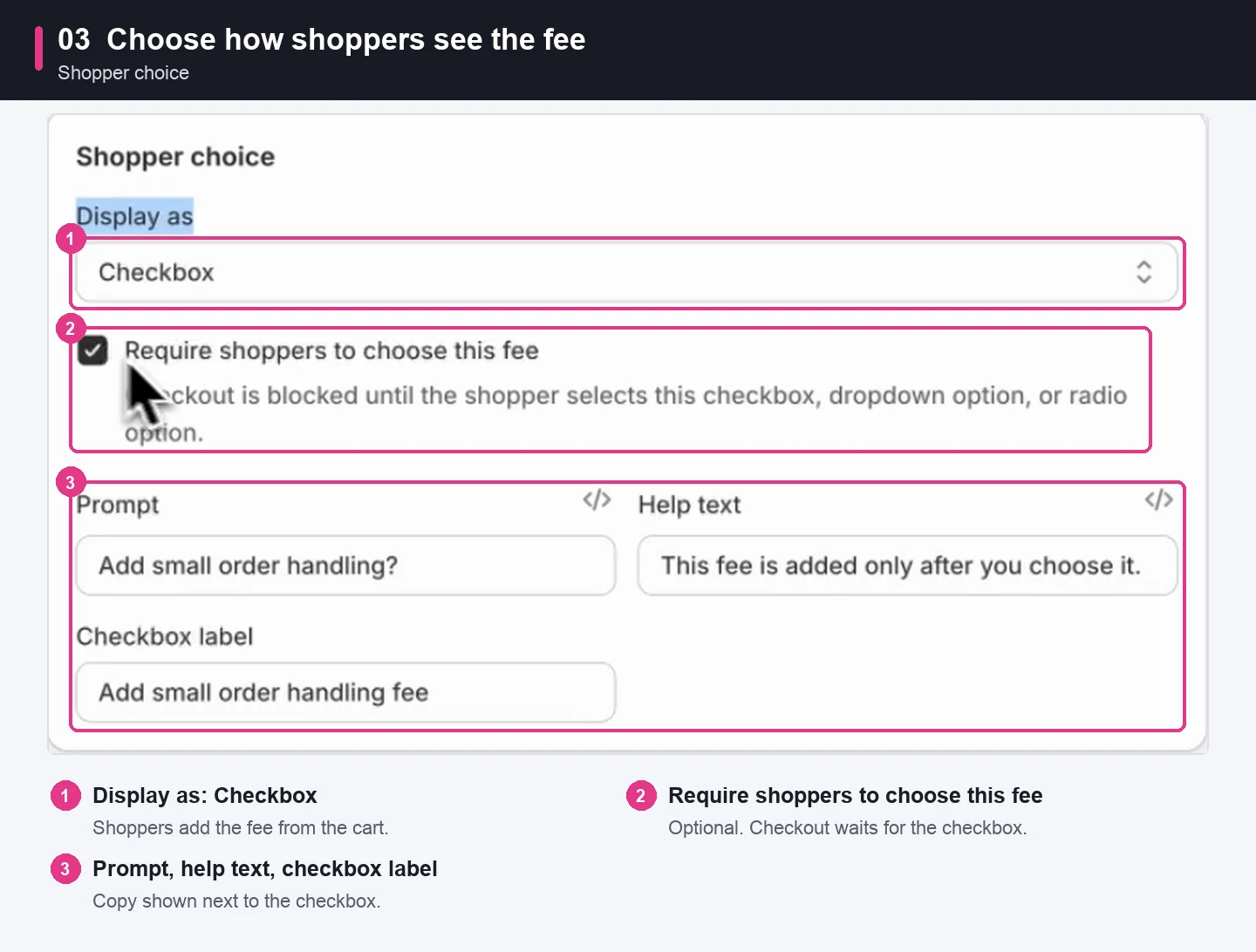
If you want the fee added without a checkbox, choose Hidden (automatic) instead.
Step 4: Set the subtotal condition
In Popular conditions, Cart subtotal is already active. Keep:
- Operator: Less Than
- Value: 50
The fee is only offered while the cart subtotal is below 50 in your store currency. The Cart preview on the right shows the checkbox shoppers will see.
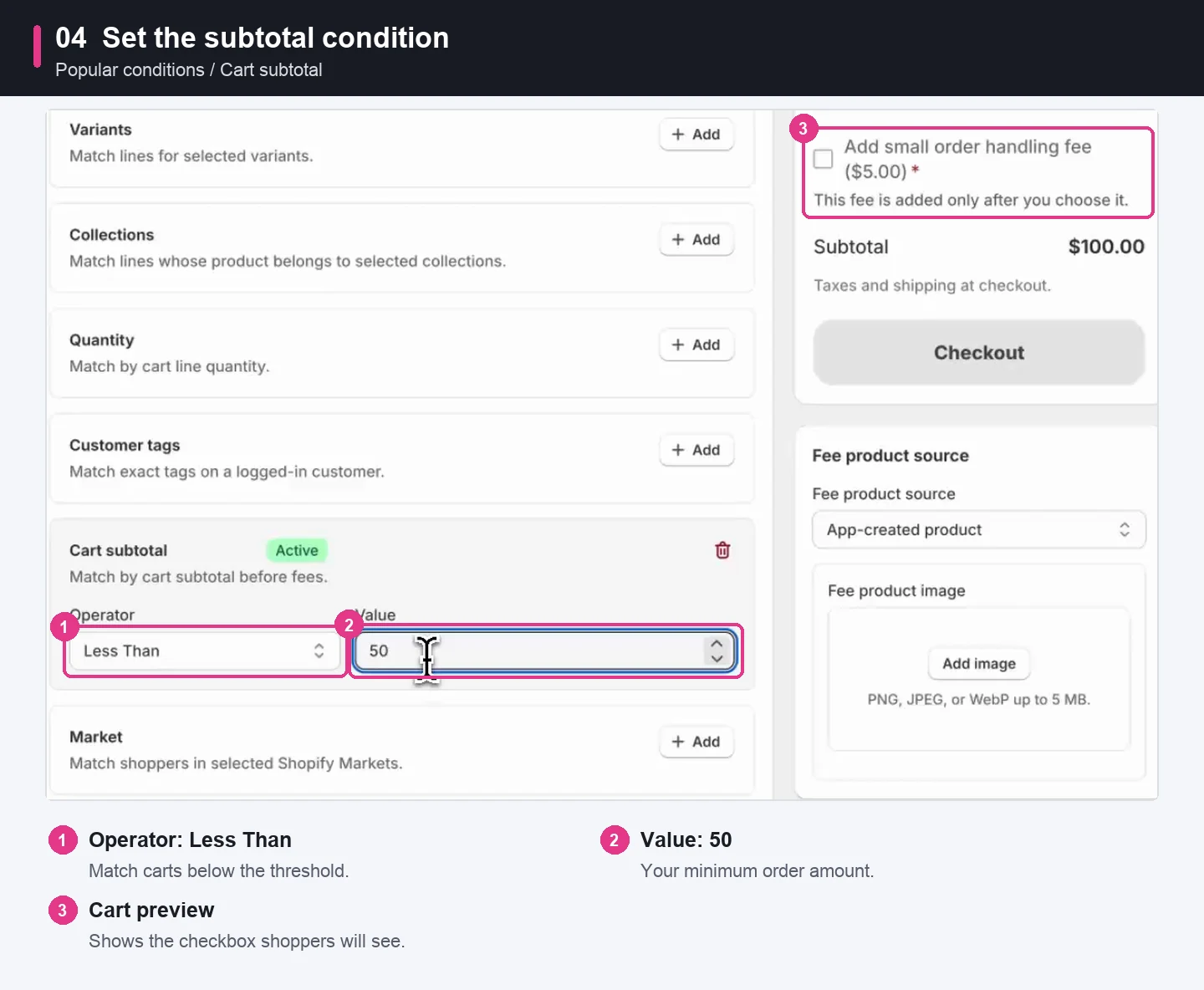
Cart subtotal is matched before fees, so the fee itself never pushes a cart over the threshold.
Step 5: Save the fee
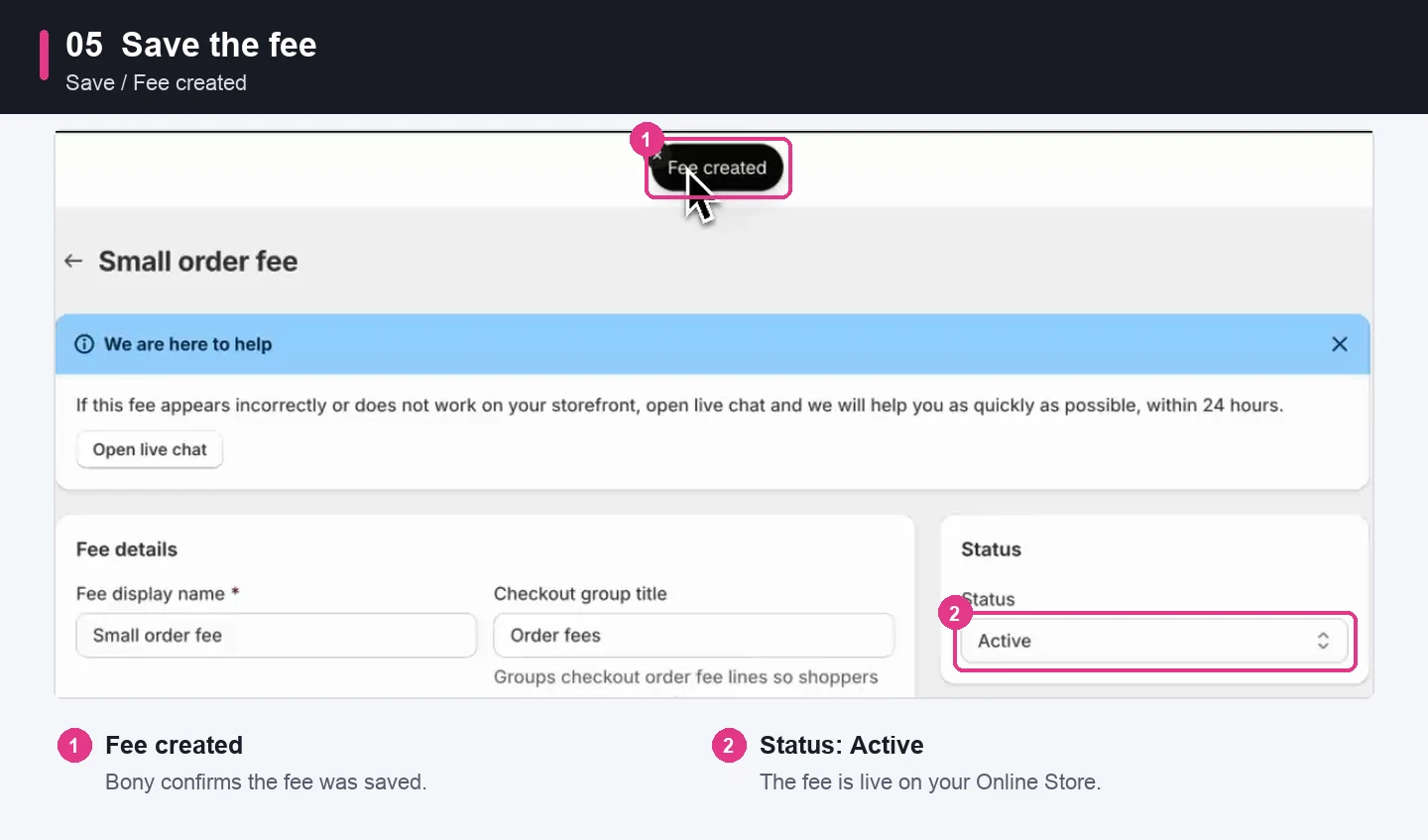
Check that Status is Active and Online Store is selected under Sales channels, then click Save. Bony shows a Fee created message.
Step 6: Enable the app embed
The storefront checkbox needs the Bony app embed in your live theme.
- Go back to the Bony Fees & Surcharge Home page.
- In App embed status, click Enable. The theme editor opens on App embeds.
- Check that Bony Product Fees & Surcharge is switched on.
- Click Save in the theme editor.
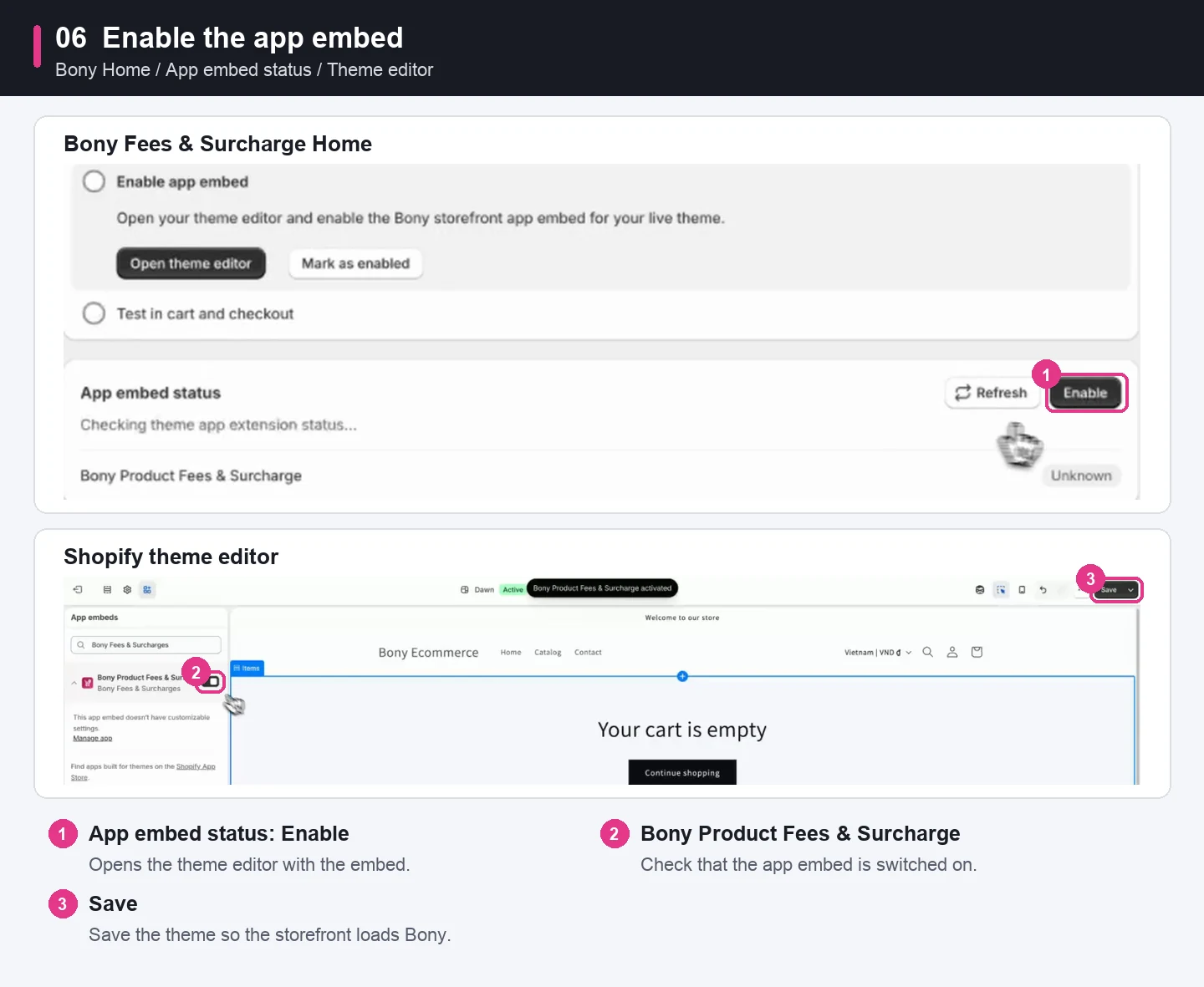
You only need to enable the app embed once per theme. The setup guide on Bony Home also links to the theme editor.
Step 7: Test the fee in your cart
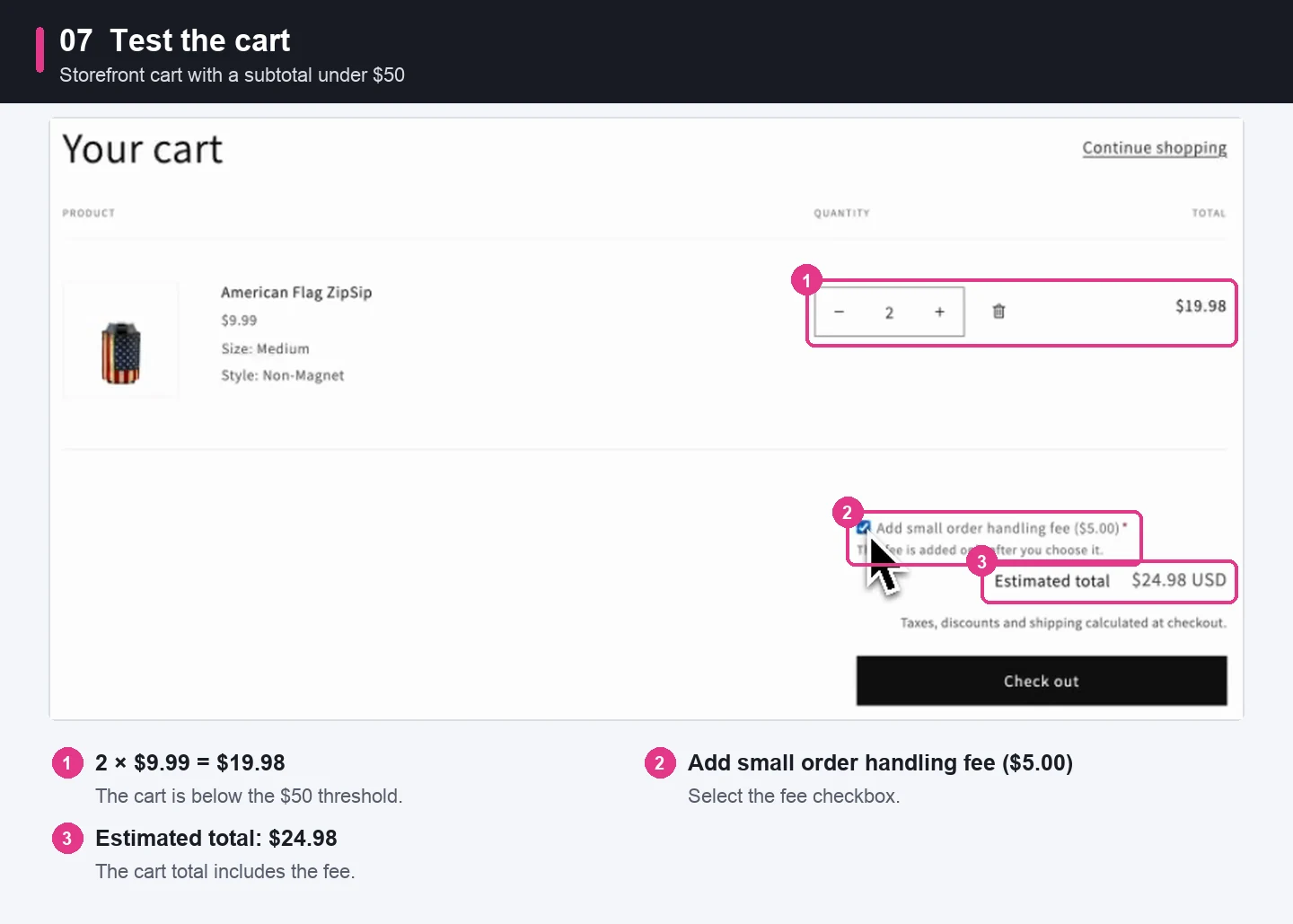
Open your storefront and add a product to the cart, keeping the subtotal under $50. The small order fee checkbox appears in the cart drawer and on the cart page.
Select the fee and check the cart total. In the video, the result is:
| Item | Recorded amount |
|---|---|
| 2 × American Flag ZipSip at $9.99 | $19.98 |
| Small order fee | $5.00 |
| Estimated total | $24.98 |
Step 8: Confirm the checkout total
Click Check out. In the order summary, the fee appears under Order fees as 1 × Small order fee, and the total is $24.98 before shipping and tax.
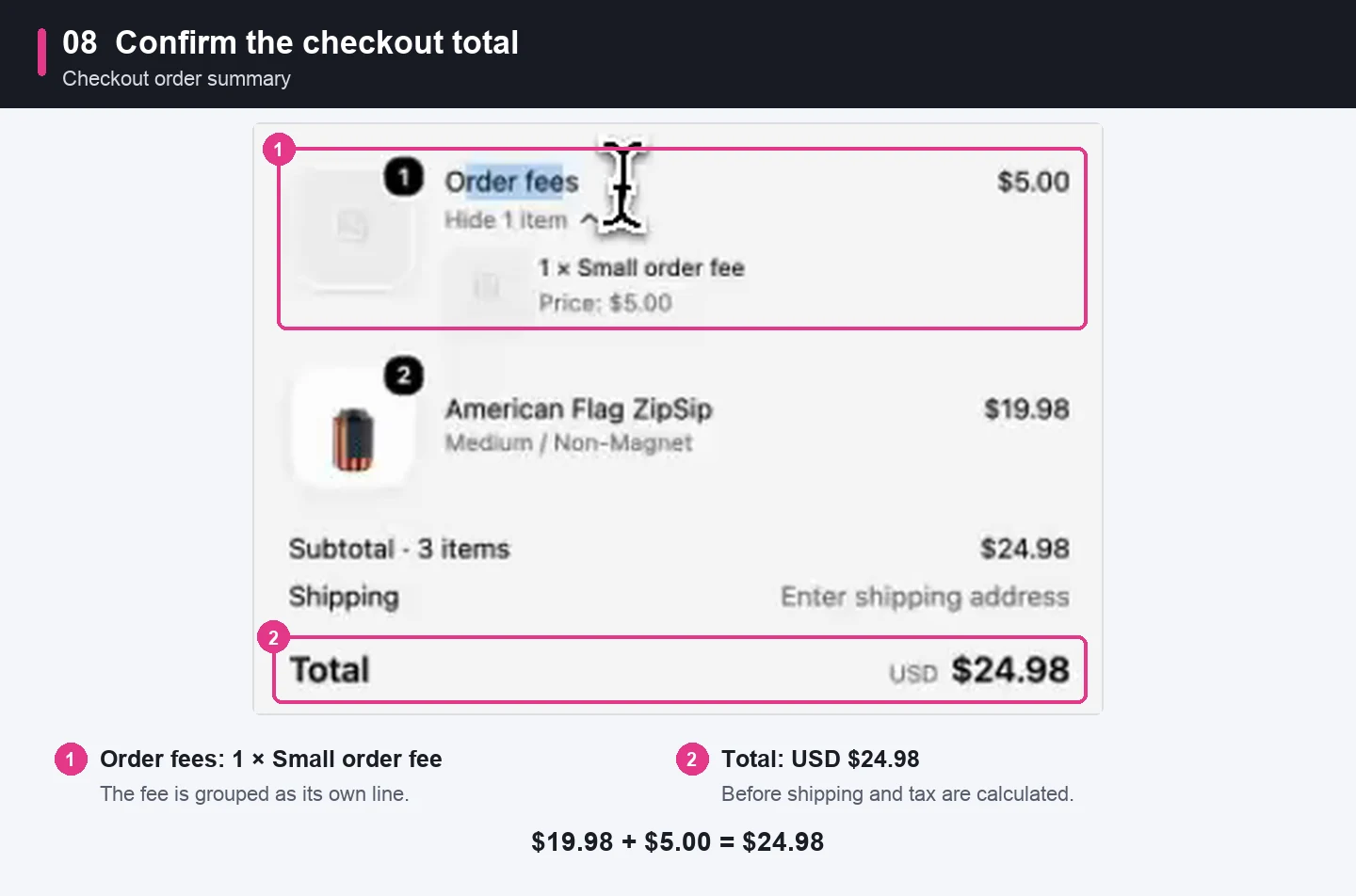
The example checkout is shown before shipping and tax are calculated.
Finally, test a cart at or above $50. The Cart subtotal condition no longer matches, so the fee should not apply. Test with the currencies, discounts, and shipping options your store actually uses.
If the fee does not appear
Review these settings first:
- The fee is saved, its Status is Active, and Online Store is selected.
- Cart subtotal is set to Less Than your threshold, and the test cart is below it.
- The Bony Product Fees & Surcharge app embed is switched on and saved in your live theme.
- Your Bony plan includes fee conditions.
If the checkbox still doesn't show in the cart, contact Bony through the app's support option. We can help check your theme's cart settings.
Frequently asked questions
Do I need Shopify Plus for a small order fee?
No. This setup uses the Online Store sales channel and the Bony storefront app embed, not a checkout app block.
Can I change the $50 threshold or the $5 fee?
Yes. The template only prefills the form. Edit the Amount and the Cart subtotal value before you save.
Can the fee apply automatically without a checkbox?
Yes. Set Display as to Hidden (automatic). Bony then adds the fee whenever its conditions match, and shoppers see the fee name and price instead of a checkbox.
Does the subtotal include the fee itself?
No. The Cart subtotal condition matches the cart subtotal before fees, so adding the fee does not push a cart over your threshold.
What happens when the cart reaches $50?
The Cart subtotal condition no longer matches, so the fee does not apply. Test a cart above your threshold before going live.
Set up your small order fee with Bony
Install Bony Fees & Surcharge, then follow the steps above to start from the Small order fee template and test it in your cart.
To compare other approaches, read how to add a small order fee on Shopify and our guide to Shopify handling fees. For payment-based fees, see how to add a credit card fee on Shopify.