
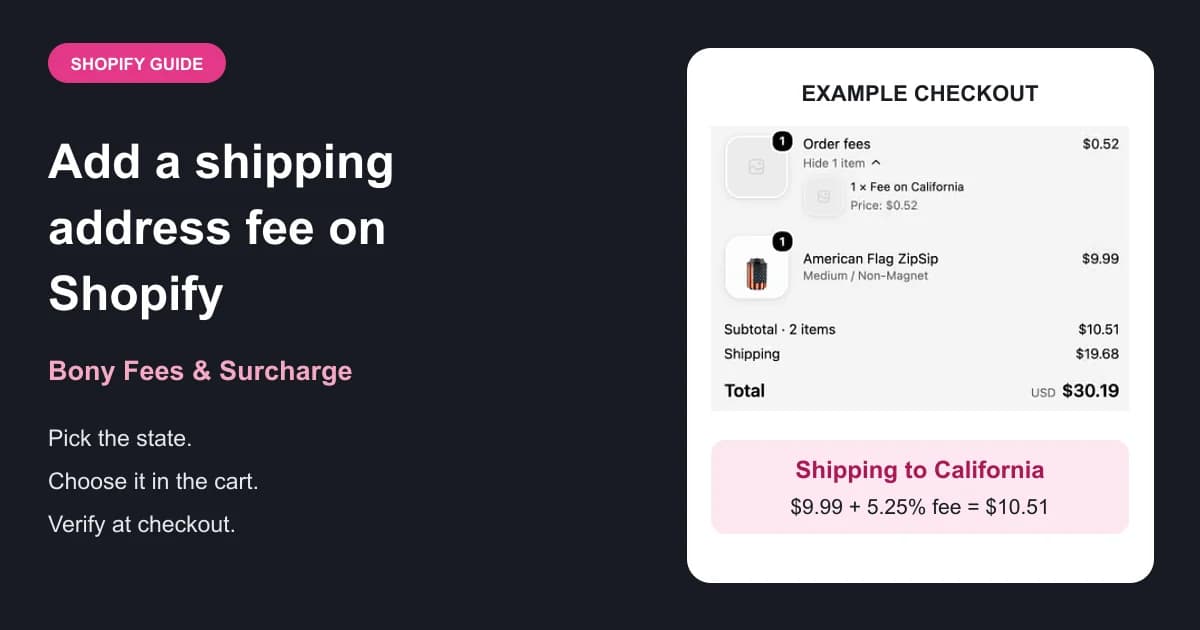
Some costs depend on where an order ships: state-specific handling, compliance, or delivery surcharges. A common request is a fee for orders shipping to California, while orders to other states pay nothing extra.
Shopify doesn't share the shipping address with the cart, which is where fees are added. Bony Fees & Surcharge works around this. Shoppers choose where they're shipping in a required Shipping to field in the cart, Bony adds or removes the fee straight away, and at checkout Shopify compares that choice with the real shipping address.
The walkthrough adds a 5.25% Order fee for orders shipping to California. In the recorded test, a $9.99 item becomes $10.51 with the fee, and a shopper who picks another state but enters a California address is stopped at checkout.
Before you start
You'll need:
- Bony Fees & Surcharge installed in Shopify Admin.
- A Bony plan that includes fee conditions (Starter or higher).
- Access to your Online Store theme editor, so you can turn on the Bony app embed.
- A product you can add to the cart for testing.
Shopify Plus is not required. This setup uses the Online Store sales channel and works on every Shopify plan.
How shipping location matching works
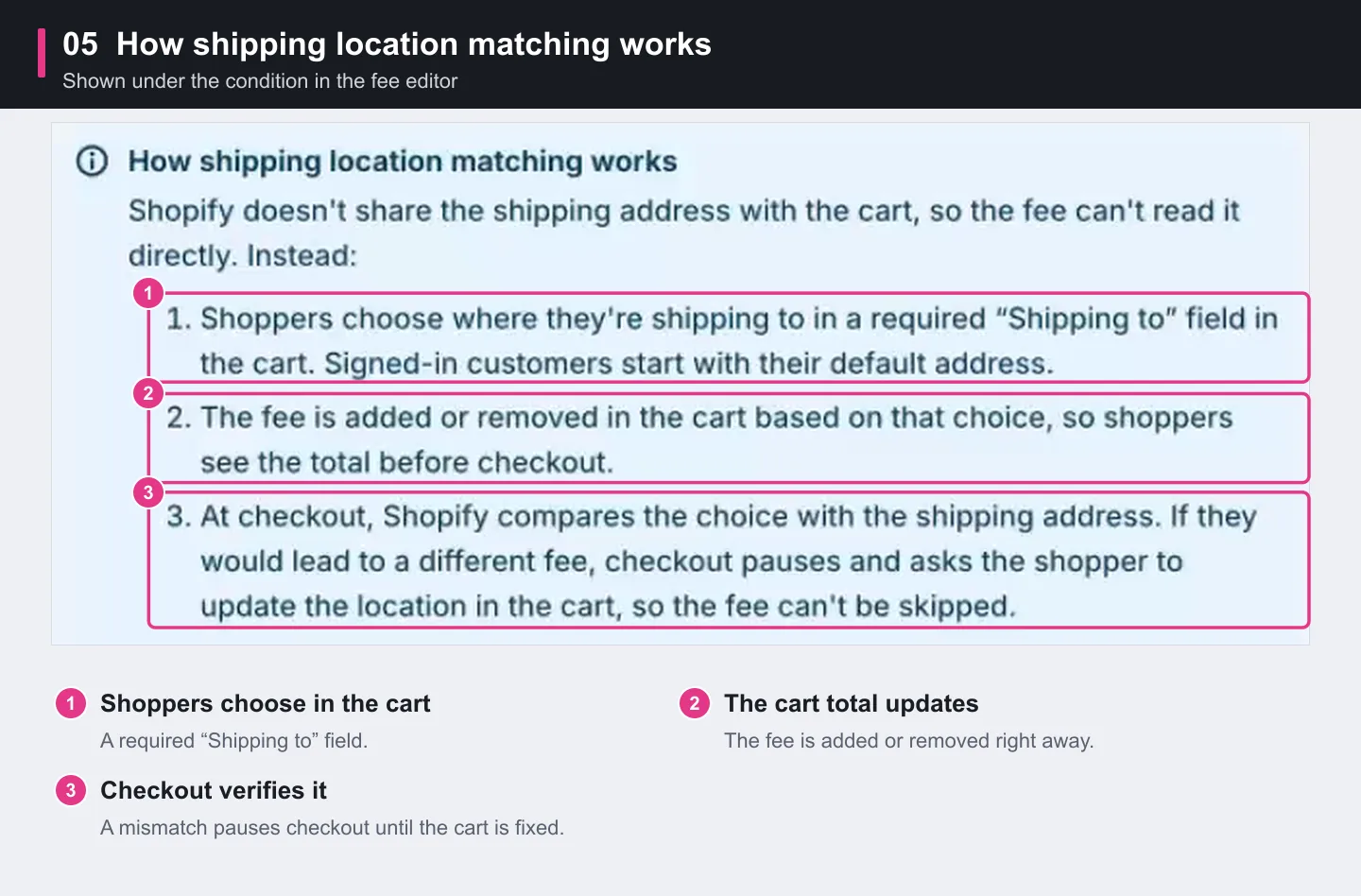
- Shoppers choose in the cart. A required Shipping to field appears with your Bony fees. Signed-in customers start with their default address.
- The cart total updates. The fee is added or removed as soon as the shopper picks a location, so they see the total before checkout.
- Checkout verifies it. If the shipping address entered at checkout would lead to a different fee, checkout pauses and asks the shopper to update the location in the cart. The fee can't be skipped by picking another state.
Watch the 2-minute walkthrough
Download the English subtitles.
Step 1: Create a new fee
In Shopify Admin, open Bony Fees & Surcharge. On the Home page, click Create fee in the setup guide, or use the Create fee button at the top of the page.
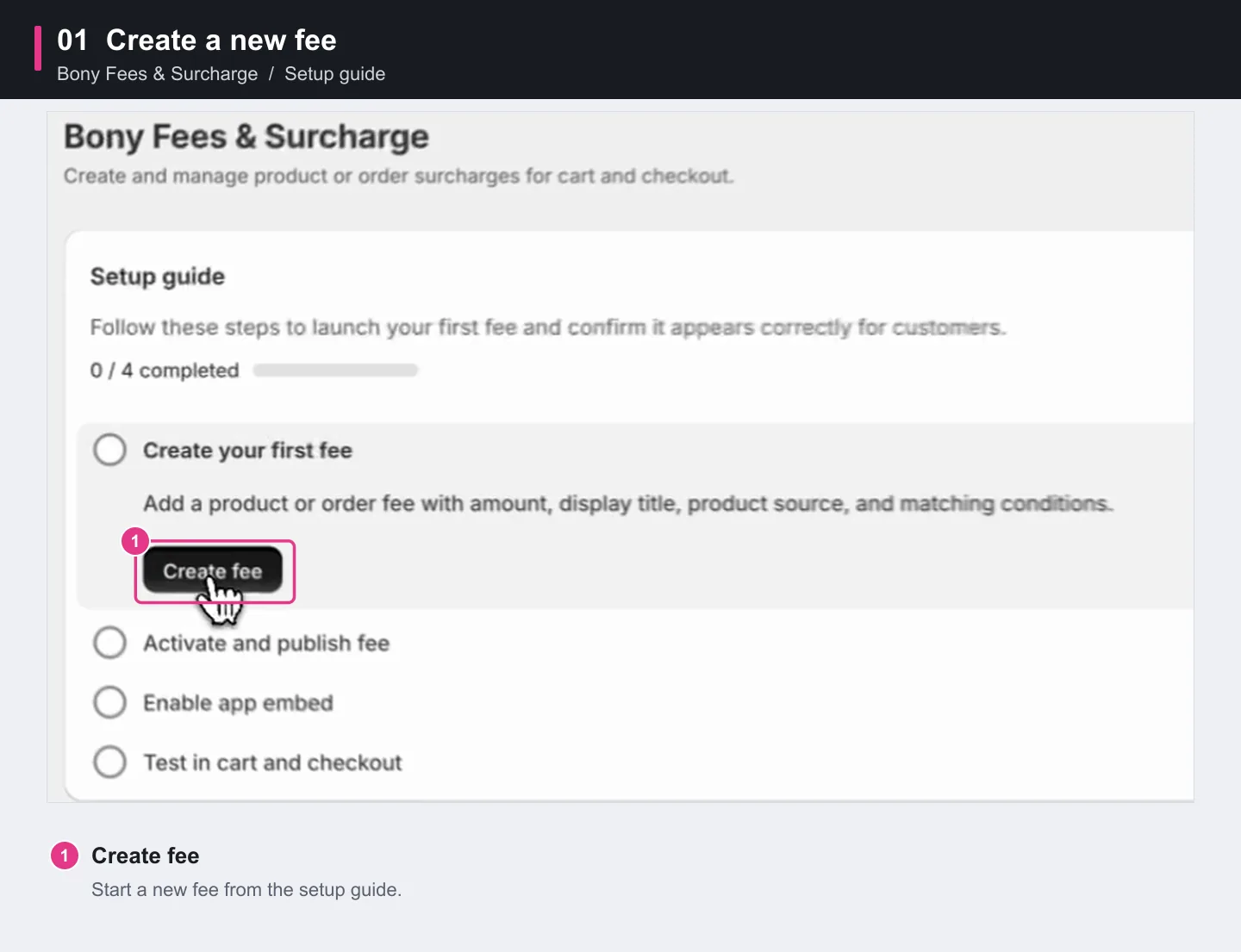
Nothing is saved until you click Save.
Step 2: Set the fee details
Under Fee details, enter:
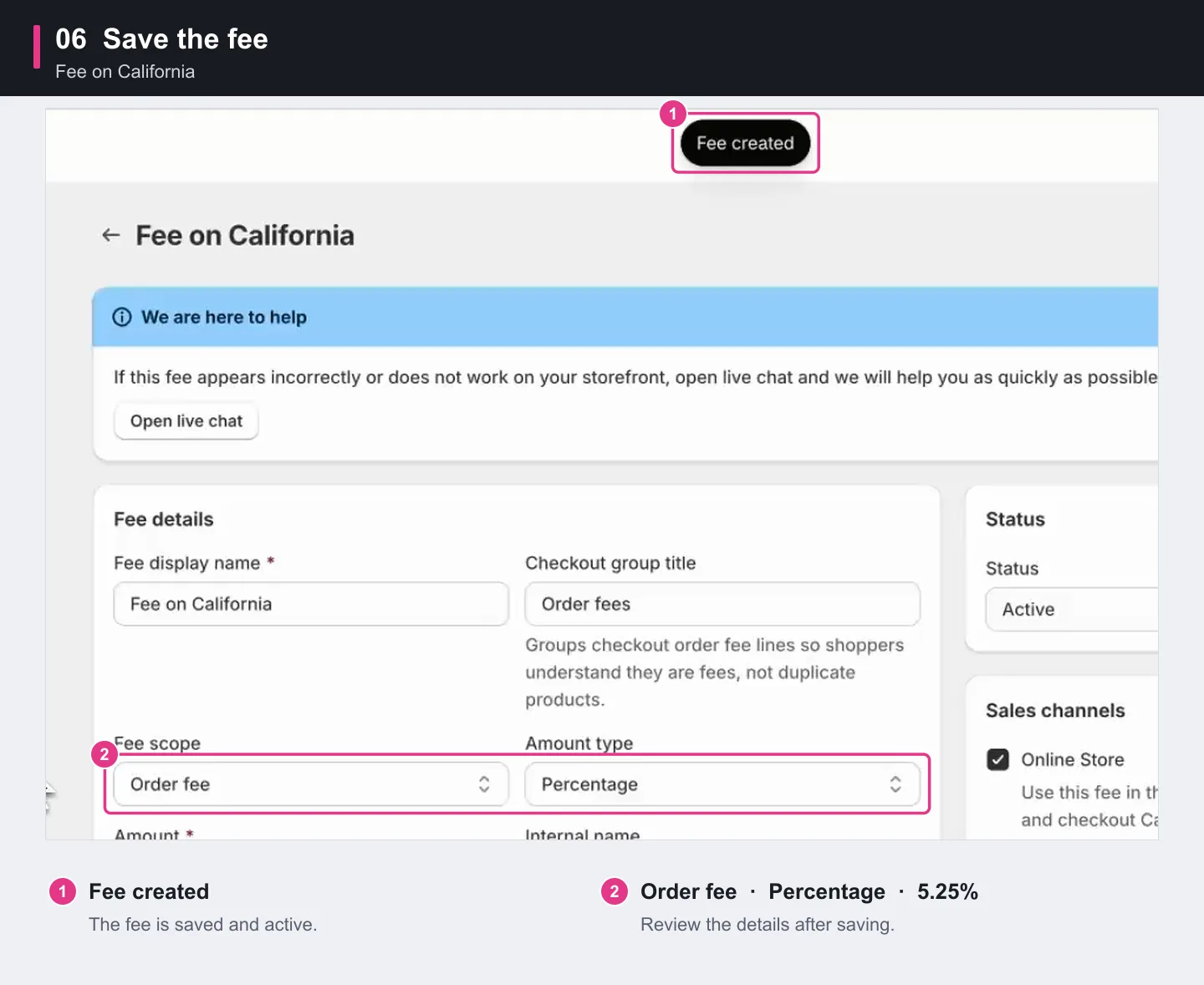
- Fee display name: Fee on California
- Fee scope: Order fee, so the charge applies once per order
- Amount type: Percentage
- Amount: 5.25
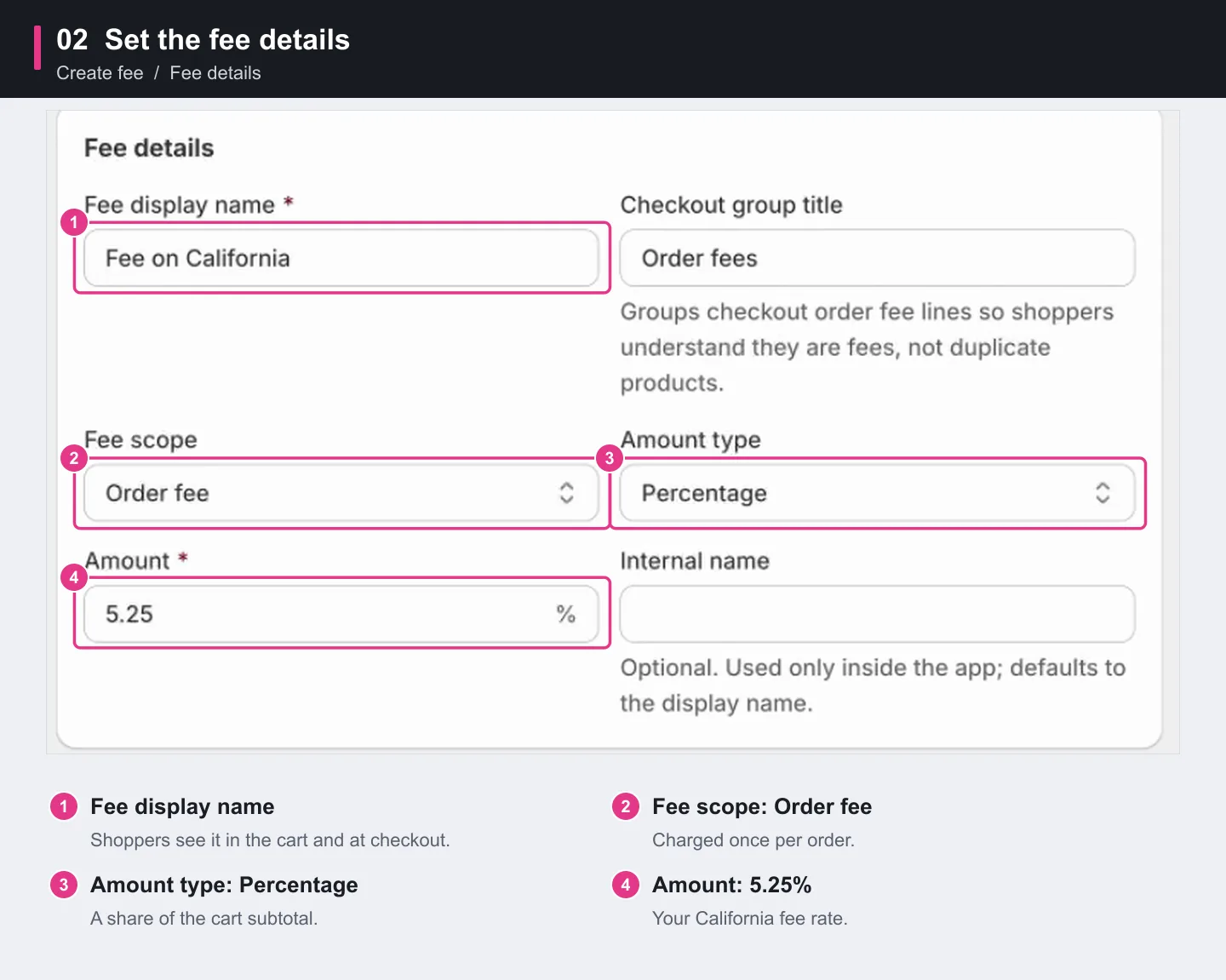
A Percentage Order fee is calculated from the cart subtotal. Use Fixed if you want a flat amount instead.
Step 3: Apply the fee automatically
Under Shopper choice, set Display as to Hidden. There's no checkbox to tick: the fee is added whenever its conditions match, and shoppers see the fee name and amount in the cart.
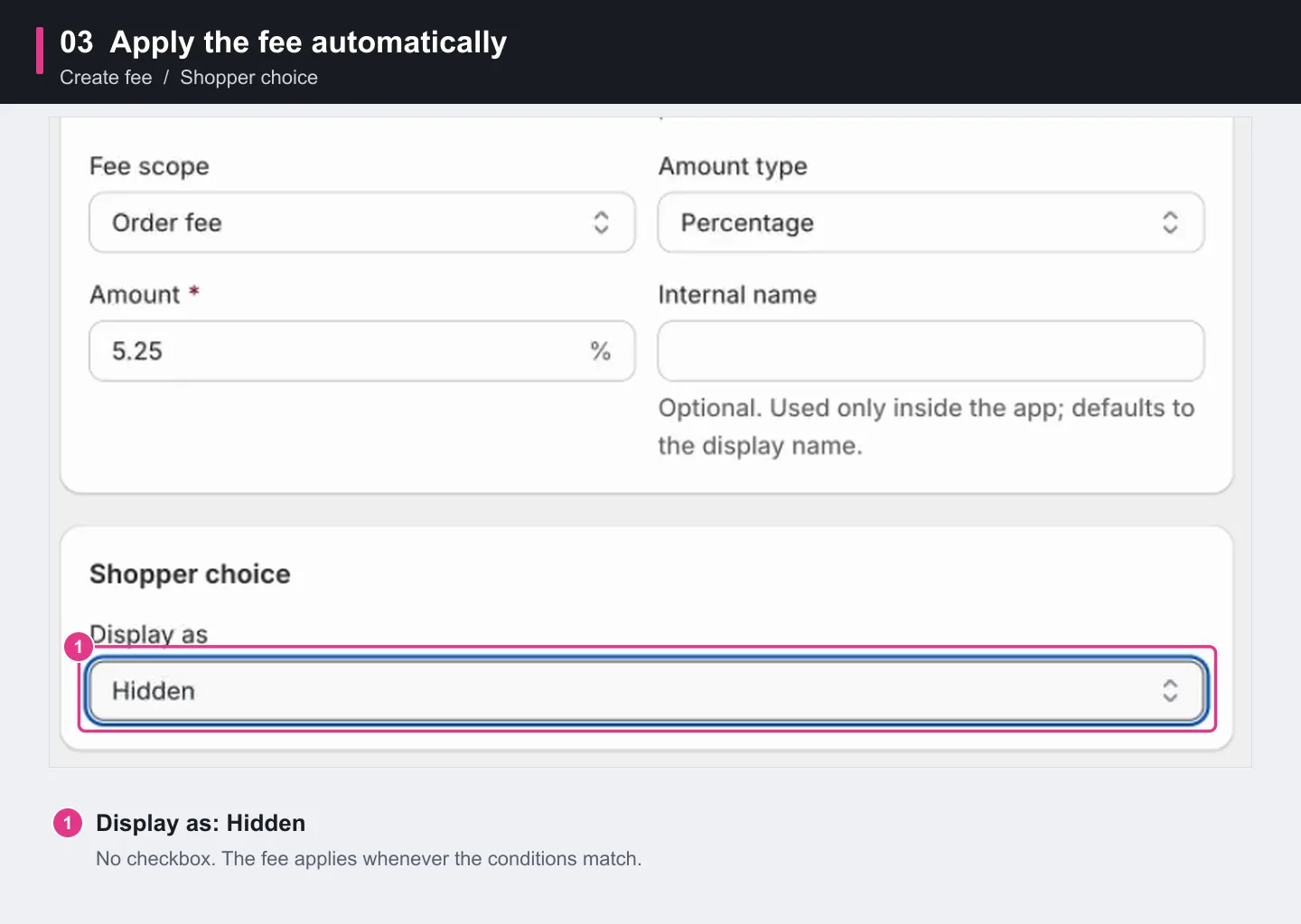
A location-based fee is usually not optional, which is why the walkthrough uses Hidden.
Step 4: Add the shipping state condition
Scroll to Popular conditions and click Add on Shipping state or province. Then set:
- Operator: Equals
- Country for state selection: United States (US)
- Shipping states or provinces: California
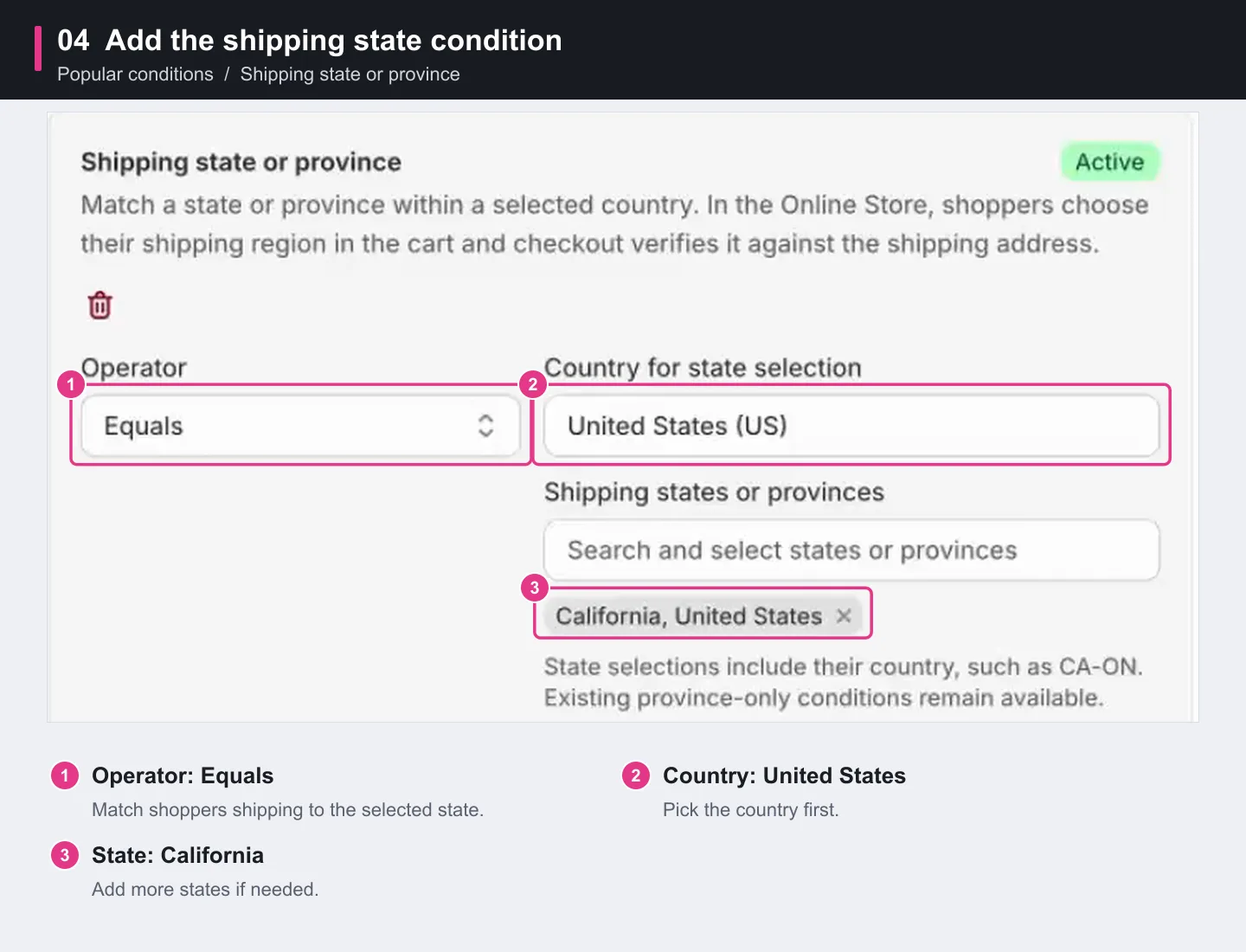
You can select several states. To match a whole country instead, use the Shipping country condition.
Below the condition, Bony shows How shipping location matching works, the same three steps described at the start of this guide.
Step 5: Save the fee
Check that Status is Active and Online Store is selected under Sales channels, then click Save. Bony shows a Fee created message.
Step 6: Enable the app embed
The Shipping to field and the fee need the Bony app embed in your live theme. Skip this step if you've already turned it on.
- Go back to the Bony Fees & Surcharge Home page.
- In the setup guide, click Open theme editor. The theme editor opens on App embeds.
- Switch on Bony Product Fees & Surcharge.
- Click Save in the theme editor.
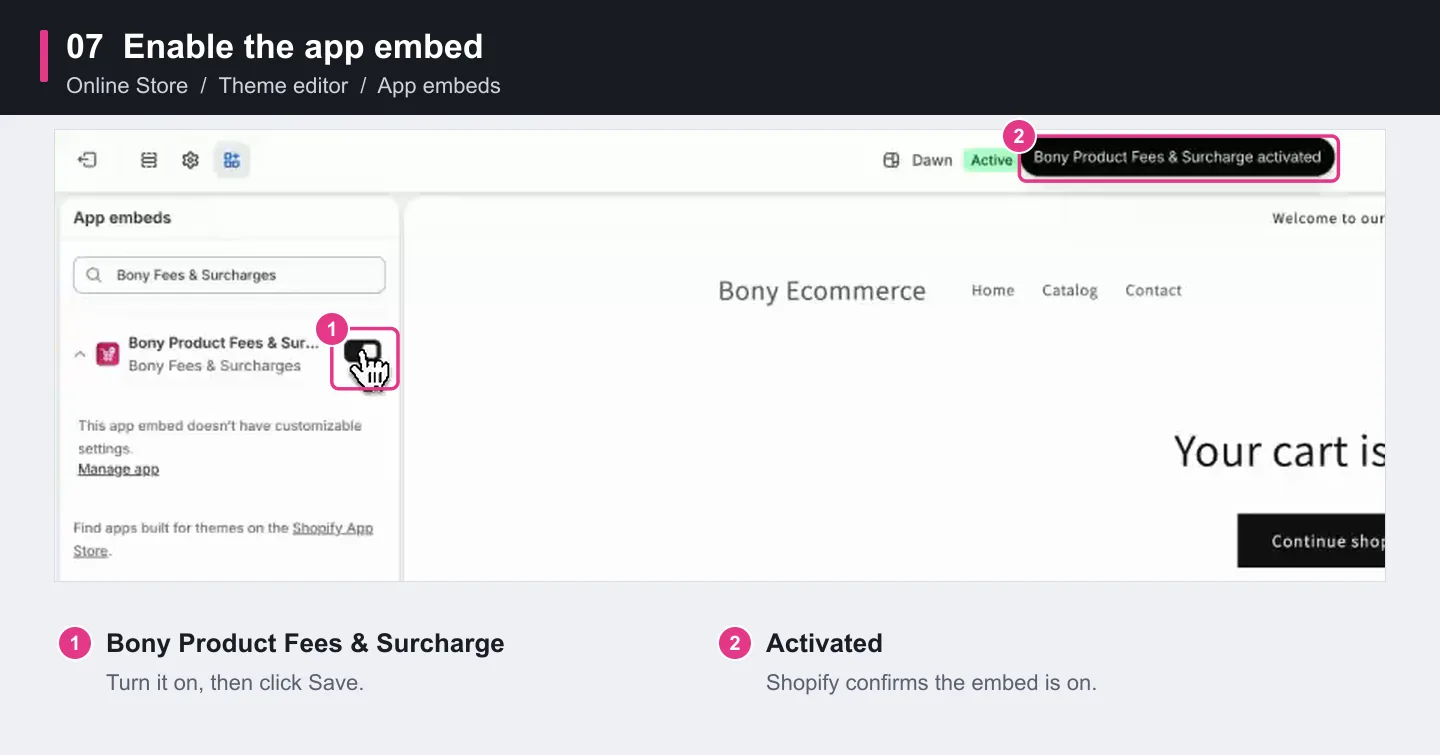
Back in Bony, click Refresh under App embed status to confirm it shows Active.
Step 7: Choose the shipping location in the cart
Open your storefront and add a product to the cart. A required Shipping to field appears in the cart drawer and on the cart page.
Choose United States, then a state:
- Arkansas: no fee is added.
- California: Fee on California (5.25%) appears, and the estimated total goes up.
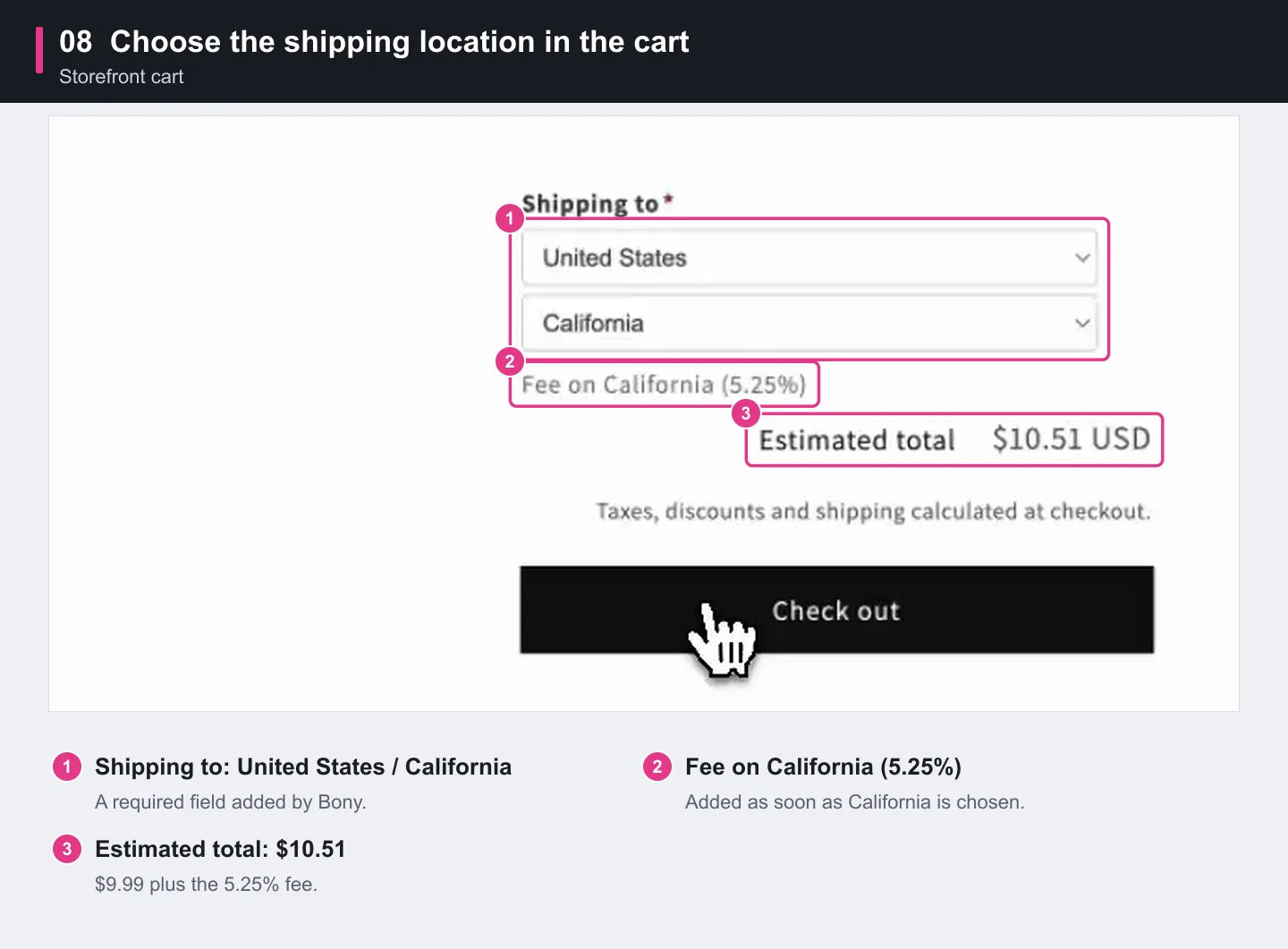
| Item | Recorded amount |
|---|---|
| American Flag ZipSip | $9.99 |
| Fee on California (5.25%) | $0.52 |
| Estimated total | $10.51 |
Shoppers must choose a location before they can check out from the cart.
Step 8: Check the fee at checkout
Click Check out. In the order summary, the fee appears under Order fees as 1 × Fee on California. With a California shipping address, checkout continues as normal.
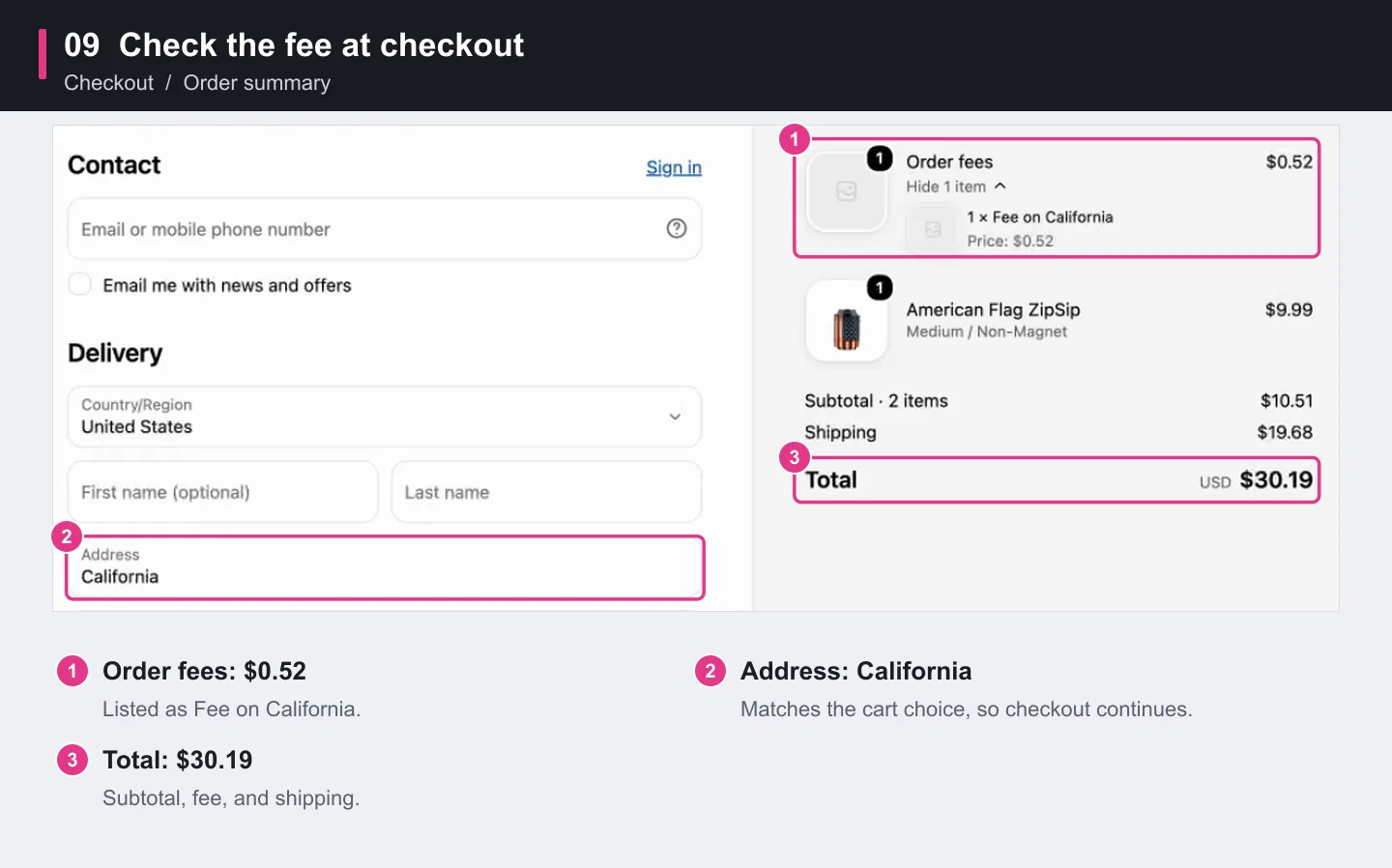
In the recording, the total is $30.19: $10.51 for the cart plus $19.68 standard shipping.
Step 9: Test a mismatched address
Now confirm the fee can't be skipped. Go back to the cart, switch Shipping to to Arkansas, and check out. The fee is removed from the cart.
Enter a California address at checkout. Because that address would lead to a different fee, checkout shows a message asking the shopper to return to the cart and update their shipping location.
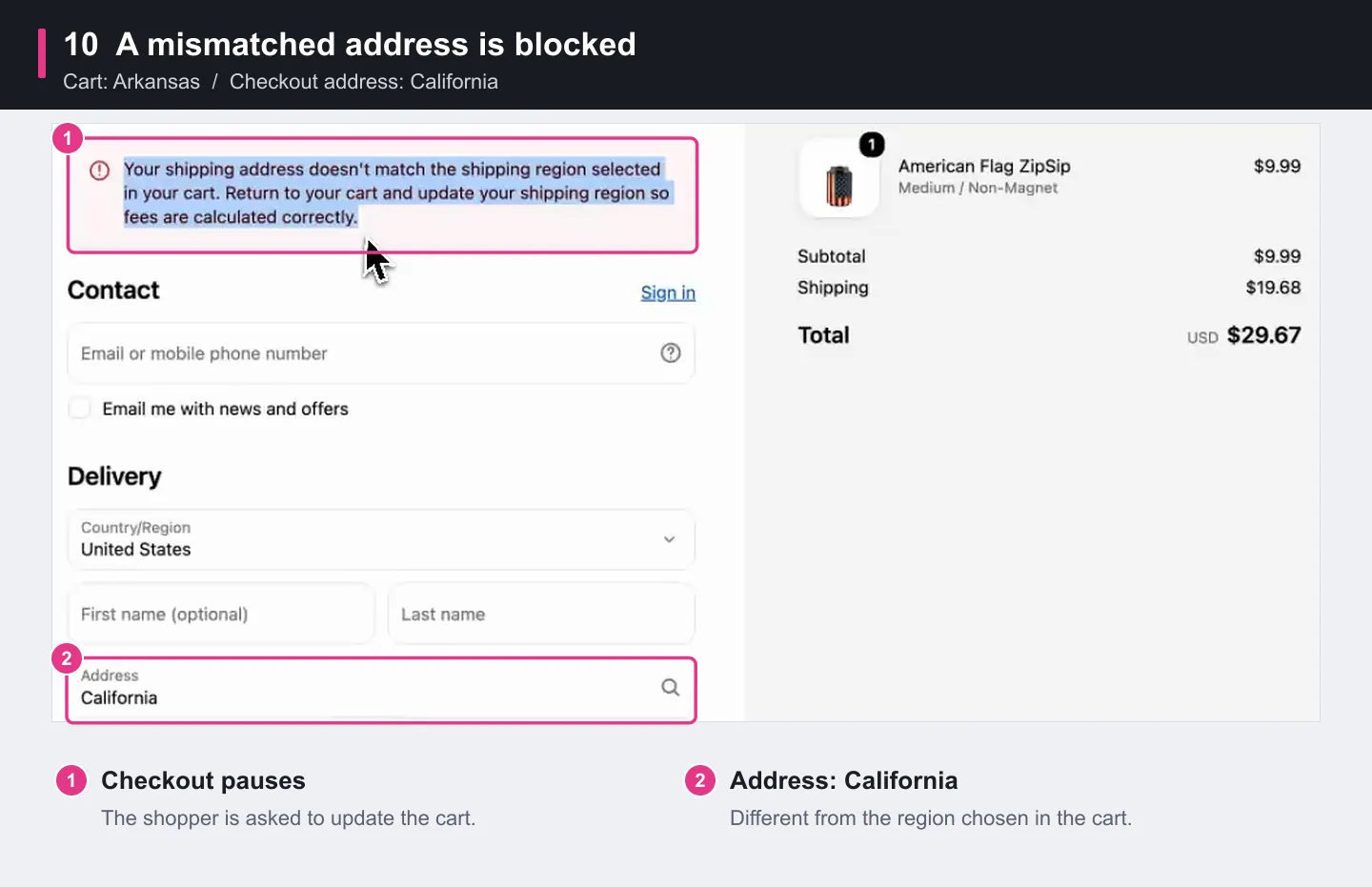
Choose California in the cart again. The fee is added back, and checkout can continue.
| Location chosen in the cart | Shipping address at checkout | Result |
|---|---|---|
| California | California | Fee applied, checkout continues |
| Arkansas | Texas | No fee, checkout continues |
| Arkansas | California | Checkout pauses until the cart is updated |
| California | Arkansas | Checkout pauses until the cart is updated |
Shoppers who use Buy it now or an express checkout button from a product page skip the cart, but they're checked the same way at checkout.
Good to know
- Local pickup: pickup orders have no shipping address to check, so they keep the fee that matches the location chosen in the cart.
- "Not Equals" rules: a state rule using Not Equals applies only to shoppers in that state's country. Use Shipping country to target international shoppers.
- Other countries: the Shipping to field lists the countries used in your conditions, plus Other country for everyone else.
- Translations: you can translate the Shipping to labels on the Bony Translations page.
If the fee does not appear
Review these settings first:
- The fee is saved, its Status is Active, and Online Store is selected.
- The condition is Shipping state or province, Equals, with the right country and state.
- The Bony Product Fees & Surcharge app embed is switched on and saved in your live theme.
- The cart contains at least one product. The Shipping to field is hidden on an empty cart.
- Your Bony plan includes fee conditions.
If checkout says the shipping address doesn't match, go back to the cart and choose the state you're shipping to. If the Shipping to field still doesn't show, contact Bony through the app's support option and we'll help check your theme's cart settings.
Frequently asked questions
Do I need Shopify Plus to charge a fee by shipping state?
No. This setup works on every Shopify plan. Shoppers choose their shipping location in the cart, and Bony's checkout validation compares it with the shipping address.
Why do shoppers have to choose their location in the cart?
Shopify does not share the shipping address with the cart, where the fee is added. The Shipping to field gives Bony the location it needs to show the right total before checkout.
Can a shopper avoid the fee by choosing a different state?
No. If the shipping address entered at checkout would lead to a different fee, checkout pauses and asks the shopper to update the location in the cart.
Can I target several states or a whole country?
Yes. Select more than one state in Shipping state or province, or use the Shipping country condition to match whole countries.
What happens with local pickup orders?
Pickup orders have no shipping address to check, so they keep the fee that matches the location chosen in the cart.
Add your shipping address fee with Bony
Install Bony Fees & Surcharge, then follow the steps above to charge a fee for the states you ship to and test both a matching and a mismatched address.
For other fee setups, see how to set up a small order fee on Shopify and how to add a credit card fee on Shopify. To compare handling fee approaches, read our guide to Shopify handling fees.