
To hide a payment method for certain countries on Shopify, create a payment rule that checks the shipping country and hides the method when it matches. Shopify does not offer this in its payment settings, so you need an app that uses Shopify's payment customization.
Stores that sell worldwide often hit this. Cash on Delivery only works where your courier collects cash. A local bank transfer is useless to a customer in another region. Showing every method to everyone leads to failed orders and support tickets.
This post shows how to set it up with Bony: Checkout Rules, including a worked Cash on Delivery example and what to check before you publish.
When does hiding payment methods by country make sense?
Hiding payment methods by country makes sense when a method is unavailable, unprofitable, or risky in some destinations. Typical cases:
- COD only where you can deliver it. Hide Cash on Delivery outside the countries your courier covers.
- Local methods for local customers. Show a regional bank deposit only for customers in that country.
- Higher-risk destinations. Hide payment methods that you cannot confirm quickly in countries where you see many failed orders.
If your goal is to protect margin on cash payments, also read how to hide COD below a minimum order amount and 5 ways to reduce fake COD orders.
Before you start
You need:
- Bony: Checkout Rules installed from the Shopify App Store.
- A paid plan (Starter or Premium). Conditions are not included in the Free plan. Both paid plans include a 7-day free trial.
- The exact payment methods you want to hide, enabled in your Shopify payment settings.
- A list of the countries involved.
| Plan | Payment rules | Conditions (such as Shipping country) |
|---|---|---|
| Free | 1 | No, the rule always applies |
| Starter | 2 | Yes |
| Premium | 25 | Yes |
On the Free plan, a rule with conditions can be saved as a draft, but publishing it needs a paid plan.
How do I hide a payment method for specific countries?
The steps below hide Cash on Delivery (COD) for every country except your delivery area. Replace the method and countries with your own.
1. Create a payment rule
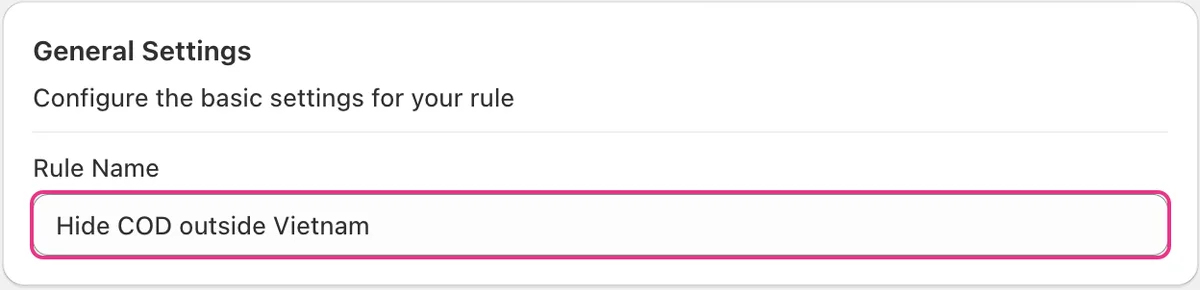
Open Bony: Checkout Rules and, under Create Rule, click Create a payment rule. Enter a Rule Name that says what the rule does, such as "Hide COD outside Vietnam".

2. Replace Always with a condition
In the Conditions section, Condition #1 starts with When... Always. Left as Always, the rule hides the method for every customer, so change it in the next step.
3. Add the Shipping country condition
Open the When... dropdown and choose Shipping country, listed under Shipping & Delivery. The condition checks the shipping destination country. Then:
- Set the operator to Is not if you want to hide the method everywhere except one country, or Is one of if you want to hide it in a list of countries.
- Pick the country in the Select countries field.
For this example, choose Is not and select Vietnam.
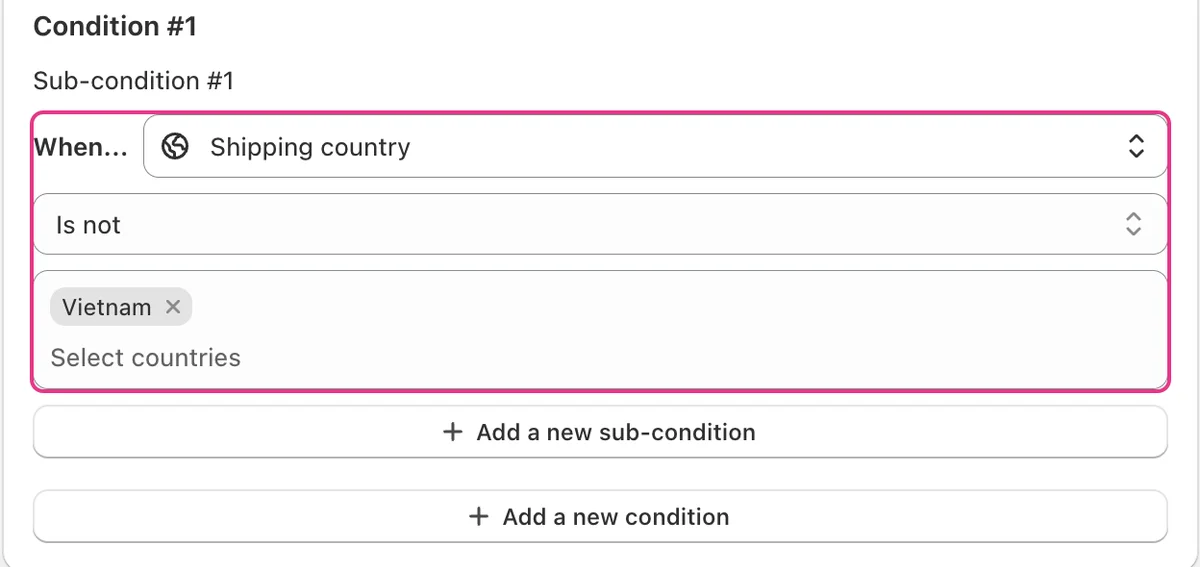
Sub-conditions inside one condition use AND logic, so every sub-condition must be true; add one with Add a new sub-condition. Separate conditions, added with Add a new condition, use OR. To also hide COD for small carts, add a Cart total amount sub-condition to the same condition, or see our guide to country-based minimum order amounts.
If you sell through Shopify Markets, the Markets condition, listed under Localization, checks whether the cart is in a specific market. Use it when your payment options follow markets rather than single countries.
4. Choose which payment methods to hide
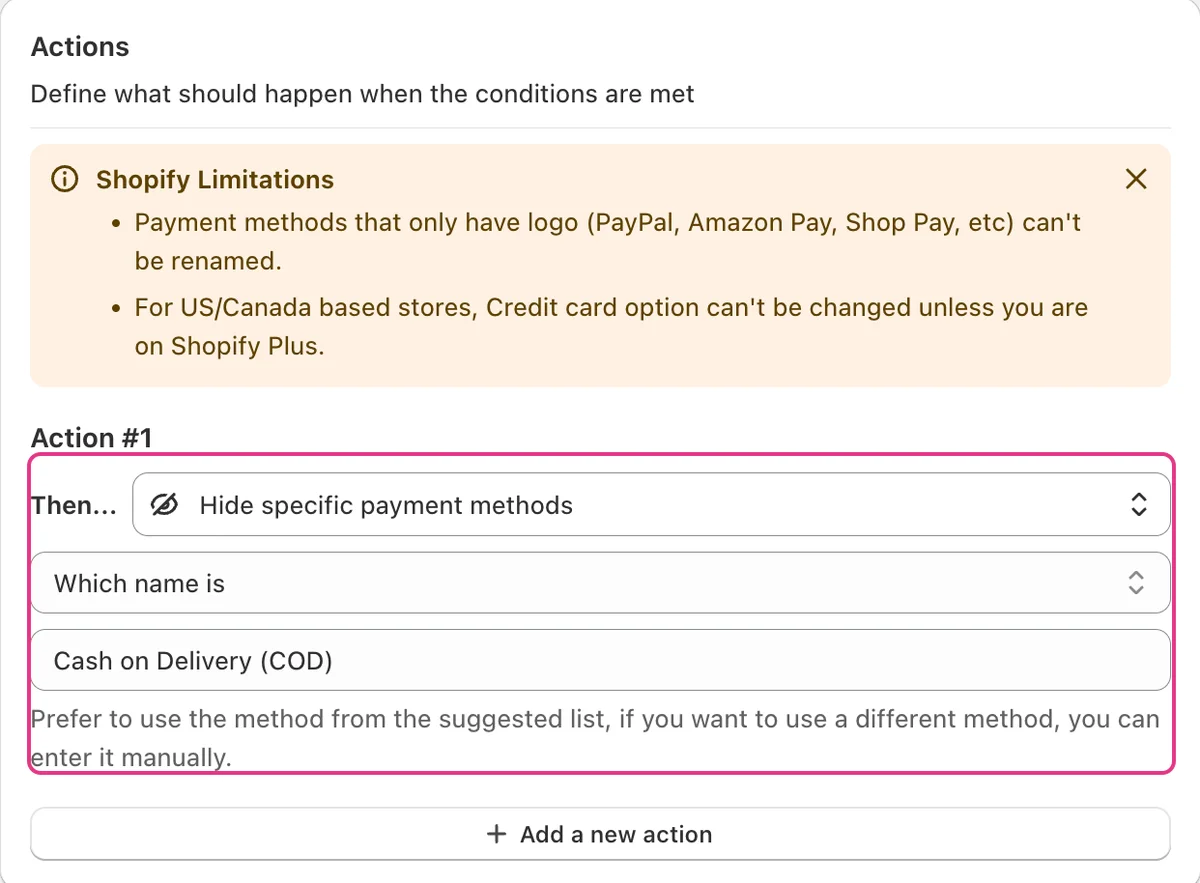
Under Actions, open the Then... dropdown and choose Hide specific payment methods. Then:
- Set the operator to Which name is.
- Pick Cash on Delivery (COD) from the suggested list.
Use Which name contains when you want to match part of a name, for example every method with "Klarna" in it. The suggested list includes common methods such as Shopify Payments, Bank Deposit, Money Order, Klarna, and Afterpay. If your method is not listed, you can type its name exactly as it appears at checkout.
You can add more actions with Add a new action. Use Hide all payment methods only when you want to block payment completely for a country.
5. Test the rule before customers see it
Set the Status to Testing and enter your Testing Email. In Testing status only a logged-in customer with that email sees the rule, so shoppers are not affected. Guest checkouts are not affected either, so log in to your store with that email first.
Then check out twice:
- Use an address in Vietnam. COD should still appear.
- Use an address in another country. COD should be gone.
The Summary panel on the rule page also shows how your conditions and actions read together, which helps you catch a wrong operator.
6. Publish the rule
When both tests pass, set the Status to Published and save. The rule now applies to all customers.
Can I show a payment method only in certain countries?
Yes. Use the Show only specific payment methods action instead of the hide action. It keeps only the methods you list and hides the rest. Pair it with Shipping country set to Is one of.
This is useful for local methods. For example, a rule with Shipping country Is one of Germany and the action Show only specific payment methods with your chosen methods restricts those customers to that list. Be careful: any method you leave off the list disappears for that country, so list every method you still want to offer.
Tips and common mistakes
- Leave a way to pay. Before you publish, check that every country still has at least one payment method. A rule that hides everything stops those customers from paying.
- Match the name. Rules match the payment method name. If a method does not hide, copy its name exactly from checkout and use Which name contains with a distinctive part.
- Mind the status. A rule in Draft does nothing, and a rule in Testing only affects the testing email.
- Check where the rule runs. Bony payment rules work through Shopify's payment customization, so test in Shopify Checkout, not only in the cart.
- Know the plan limit. If saving fails with a rule limit message, you have used your plan's payment rules. Delete a rule or upgrade.
- Shopify limits still apply. For example, Bony notes that for stores based in the US or Canada, the credit card option cannot be changed unless you are on Shopify Plus.
- The country comes from the shipping address. Before the customer enters an address, there is no country to match. An Is not condition then counts as met and an Is one of condition does not. In the COD example, COD can stay hidden until the customer enters a Vietnam address, then it appears.
What this does not do
Bony hides or shows methods that Shopify has already enabled. It does not add new payment gateways, and it cannot show a method that is not enabled in your Shopify payment settings. It also does not give legal or tax advice. Check local rules and talk to your accountant before you restrict payment options in a market.
FAQ
Can Shopify hide a payment method for specific countries?
Shopify has no built-in setting that hides a payment method for one shipping country. An app that uses Shopify's payment customization can do it. With Bony: Checkout Rules, you create a payment rule with a Shipping country condition and a Hide specific payment methods action.
Which Bony plan do I need to hide payment methods by country?
Conditions, including Shipping country, need a paid plan. On the Free plan a rule applies to every checkout, and a rule with conditions can be saved only as a draft. Starter allows 2 payment rules and Premium allows 25.
Can I show a payment method only in certain countries instead of hiding it elsewhere?
Yes. Use Show only specific payment methods with a Shipping country condition set to Is one of. Only the methods you list stay visible for those countries.
Why is the payment method still visible at checkout?
The most common causes are a rule that is still a Draft, a rule in Testing status while you check out as a different customer, or a payment method name that does not match. Check the status first, then the method name.
Can I hide PayPal, Shop Pay or Amazon Pay by country?
PayPal and Amazon Pay are in Bony's suggested payment method list, so you can pick them in a Hide specific payment methods action. Shop Pay is not in the list. You can type a name manually, but test at checkout to confirm the method disappears. The Shopify limit Bony notes is about renaming: methods that only show a logo, such as PayPal, Amazon Pay and Shop Pay, cannot be renamed.
Related reading
- Bony: Checkout Rules: the app page with plans and features.
- How to set a Shopify minimum order amount by country
- How to hide COD below a minimum order amount
- How to block COD for high-risk products
- How to add a COD fee on Shopify: if you would rather charge for COD than hide it.
Ready to try it? Install Bony: Checkout Rules and start the 7-day free trial.