
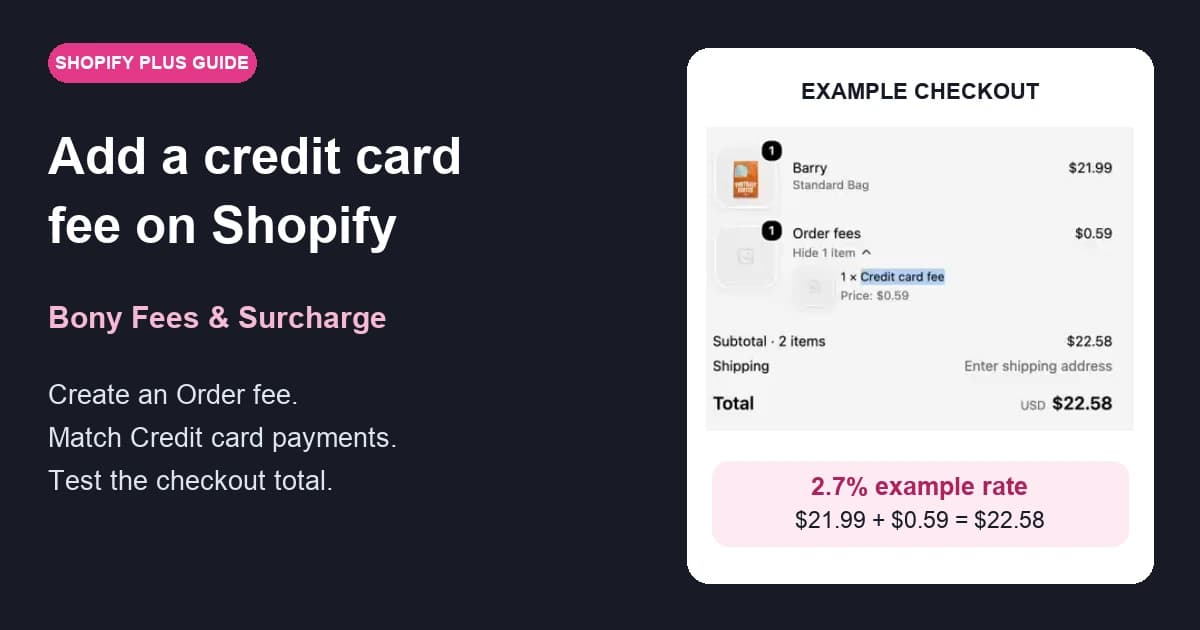
A credit card fee should follow the customer's payment choice. If the shopper switches to a different payment method, the fee should update with it.
This guide shows how to configure that behavior with Bony Fees & Surcharge: create an Order fee, set a percentage, match the Credit card payment type, and add the Bony Order Fees block to checkout.
The walkthrough uses a 2.7% example rate. In the recorded test, a $21.99 product receives a $0.59 fee, bringing the displayed total to $22.58 before shipping and tax are calculated.
Before you start
You'll need:
- A Shopify Plus store. This walkthrough uses an app block during checkout; Shopify limits apps on the information, shipping, and payment pages to Plus. See Shopify's checkout app requirements.
- Bony Fees & Surcharge installed in Shopify Admin.
- Access to your store's checkout configuration.
- A credit card payment option and another available payment method for testing.
Confirm your surcharge eligibility and permitted rate with your payment provider for the countries and card types you accept. Card-network requirements vary; Visa's rules and policies are one reference. 2.7% is a tutorial example, not a recommended or universally permitted rate.
Watch the 2-minute walkthrough
Download the English subtitles.
Step 1: Create an Order fee
In Shopify Admin, open Bony Fees & Surcharge, go to Fees, and select Create fee → Order fee.
Enter Credit card fee in Fee display name. Keep Fee scope set to Order fee, so the charge applies at the order level rather than separately to each product. You can keep Order fees as the Checkout group title.
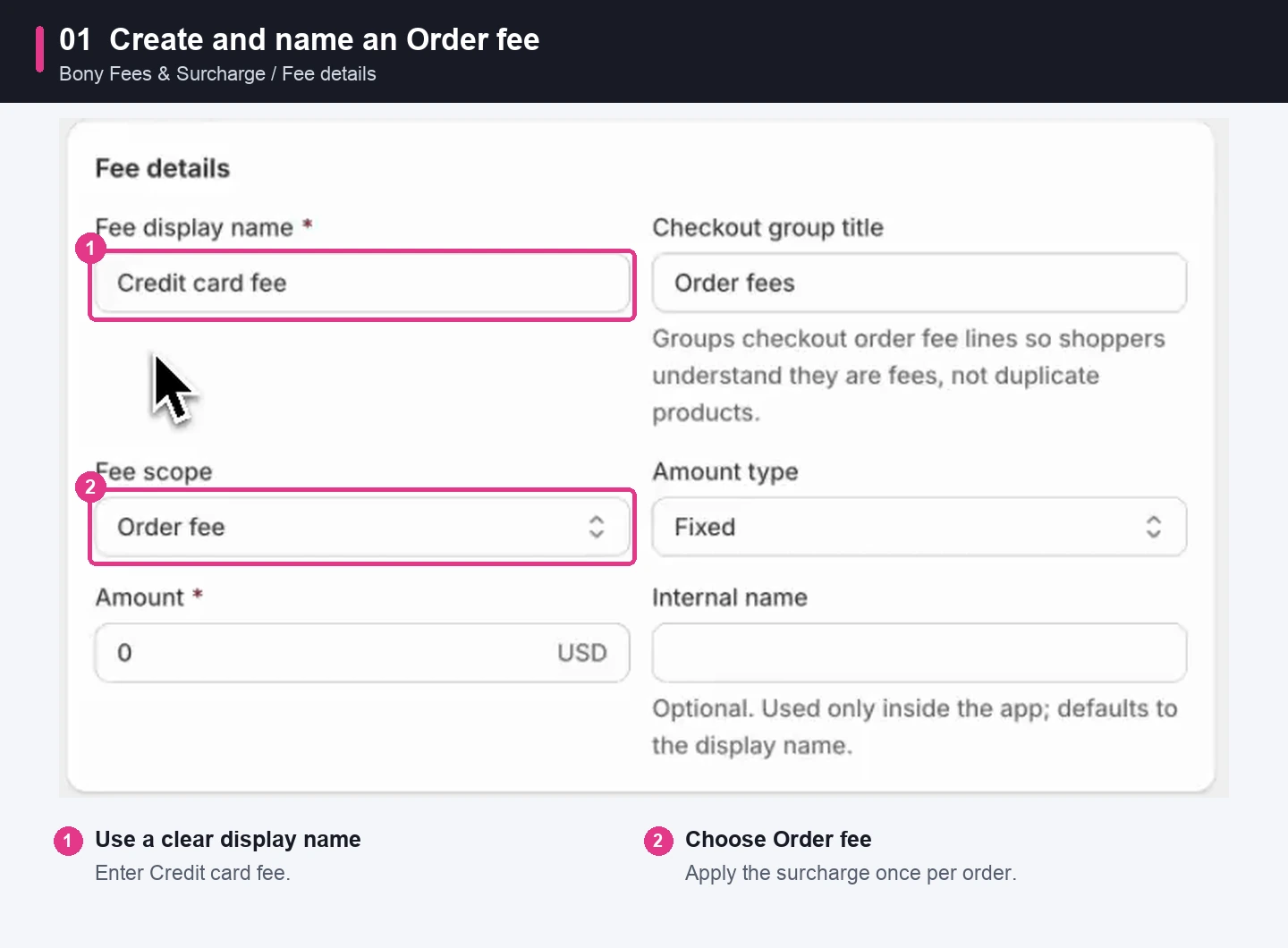
Use a clear fee name that shoppers can recognize in the order summary.
Step 2: Set the fee amount
Under Fee details:
- Set Amount type to Percentage.
- Enter your chosen rate in Amount. The video uses 2.7.
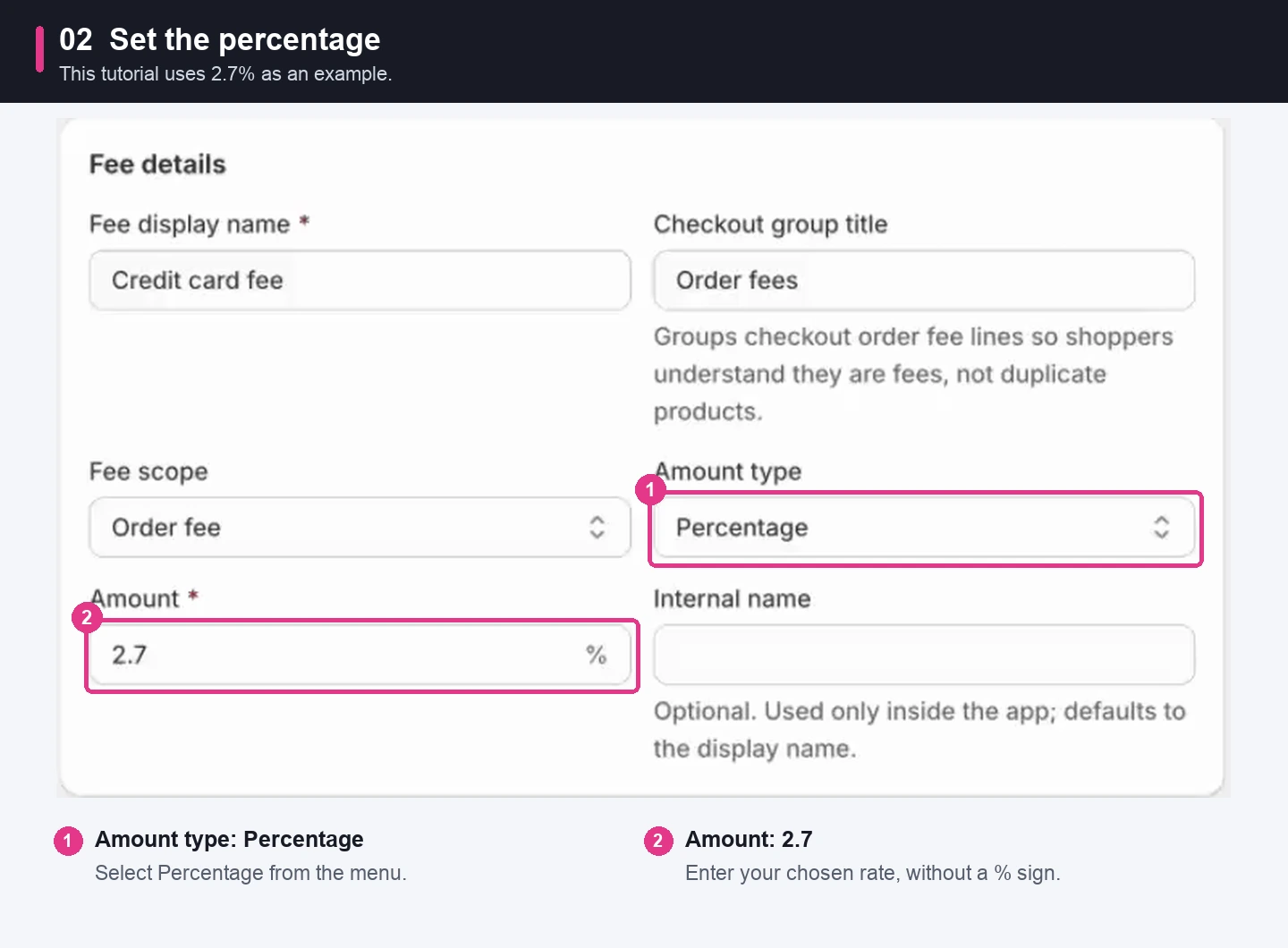
Enter the number without the percent sign; the field already shows it.
Step 3: Enable Shopify Checkout
In Sales channels, select Shopify Checkout (Plus only).
This is a dedicated Checkout channel for the fee. In the recorded interface, selecting it disables the Online Store, Draft Orders, and Shopify POS options for this fee.
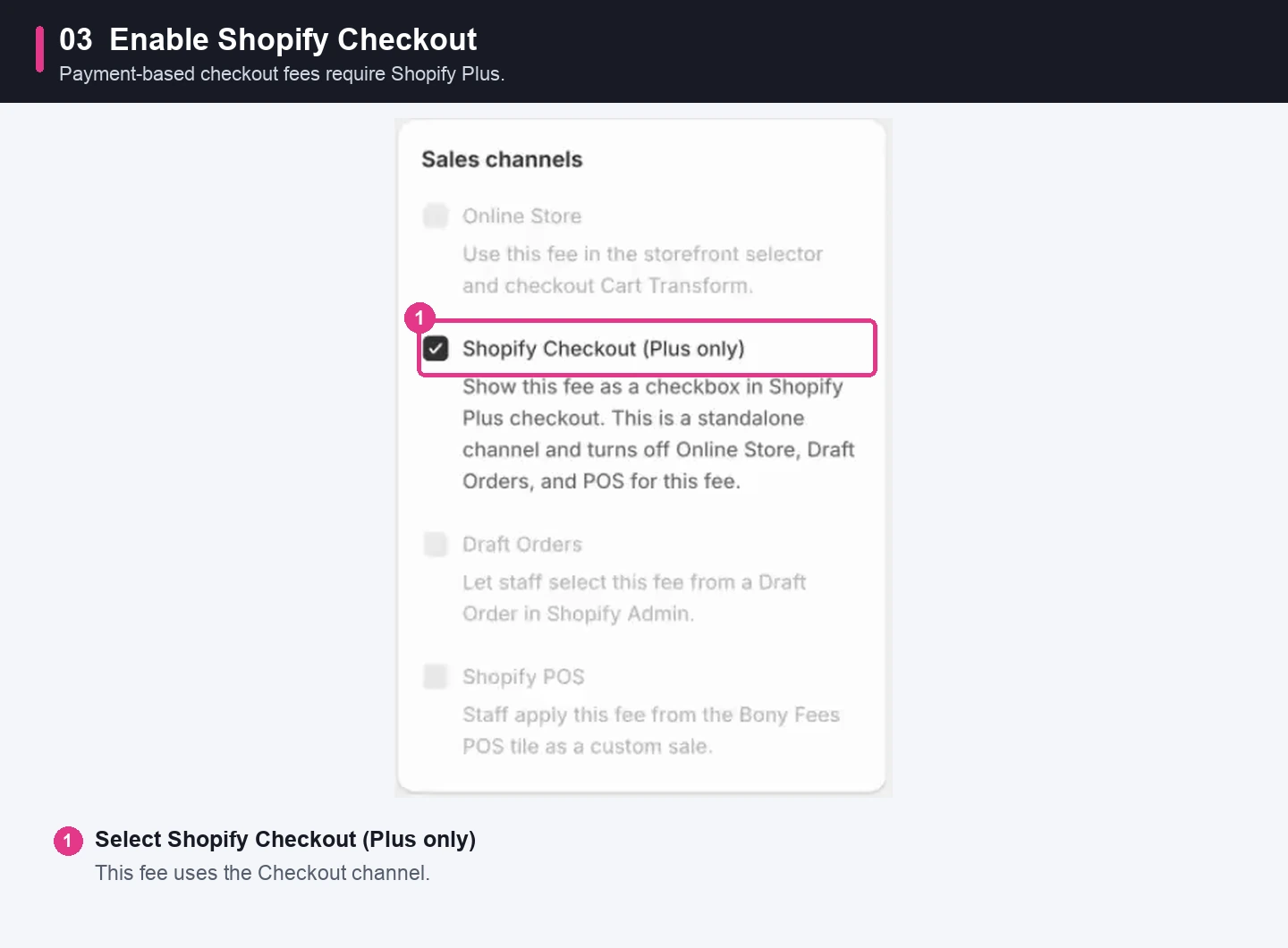
Choose the Checkout channel so the payment-based condition can be used during checkout.
Step 4: Apply the fee automatically
Under Checkout shopper choice, set Display as to Hidden (automatic).
Bony will add the fee when its conditions match, without requiring the shopper to select an optional fee checkbox. Here, Hidden refers to that selection control: the charge still appears in the checkout order summary.
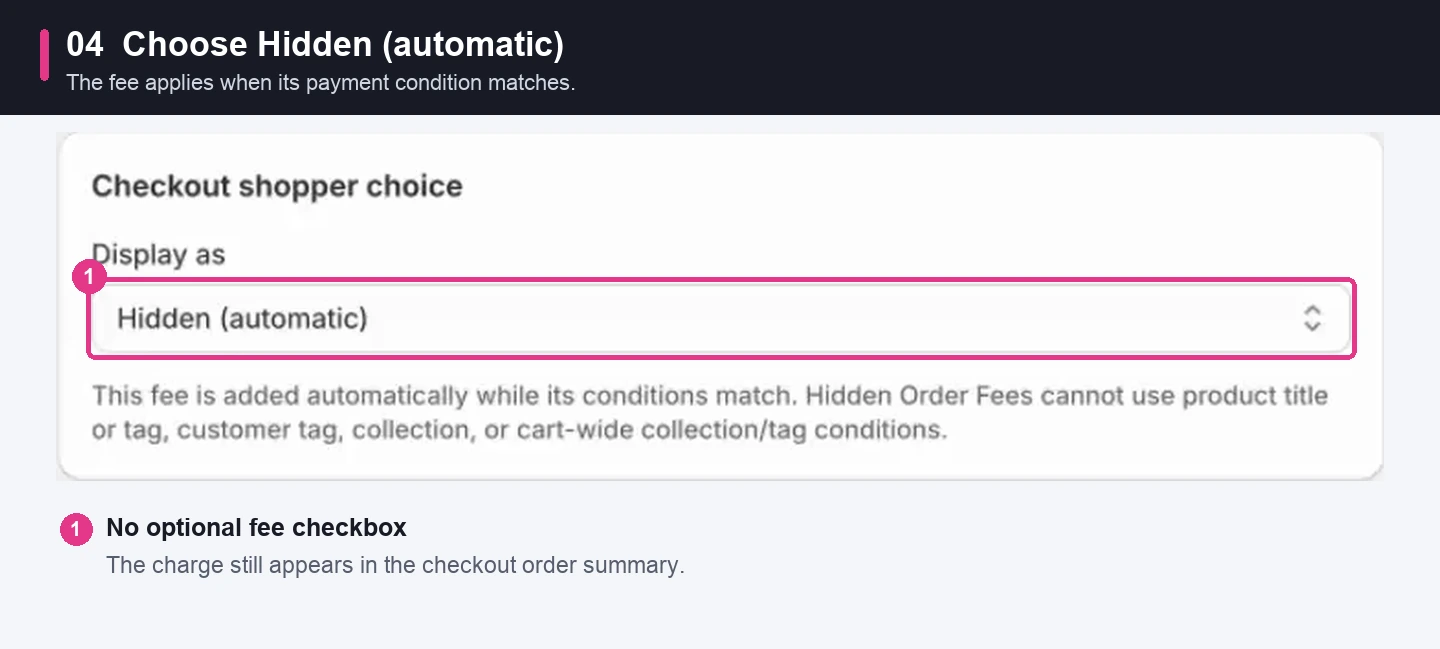
Automatic application does not hide the charge from the checkout total.
Step 5: Match Credit card payments and save
In Popular conditions, add Payment type and configure:
- Operator: Equals
- Payment type: Credit card
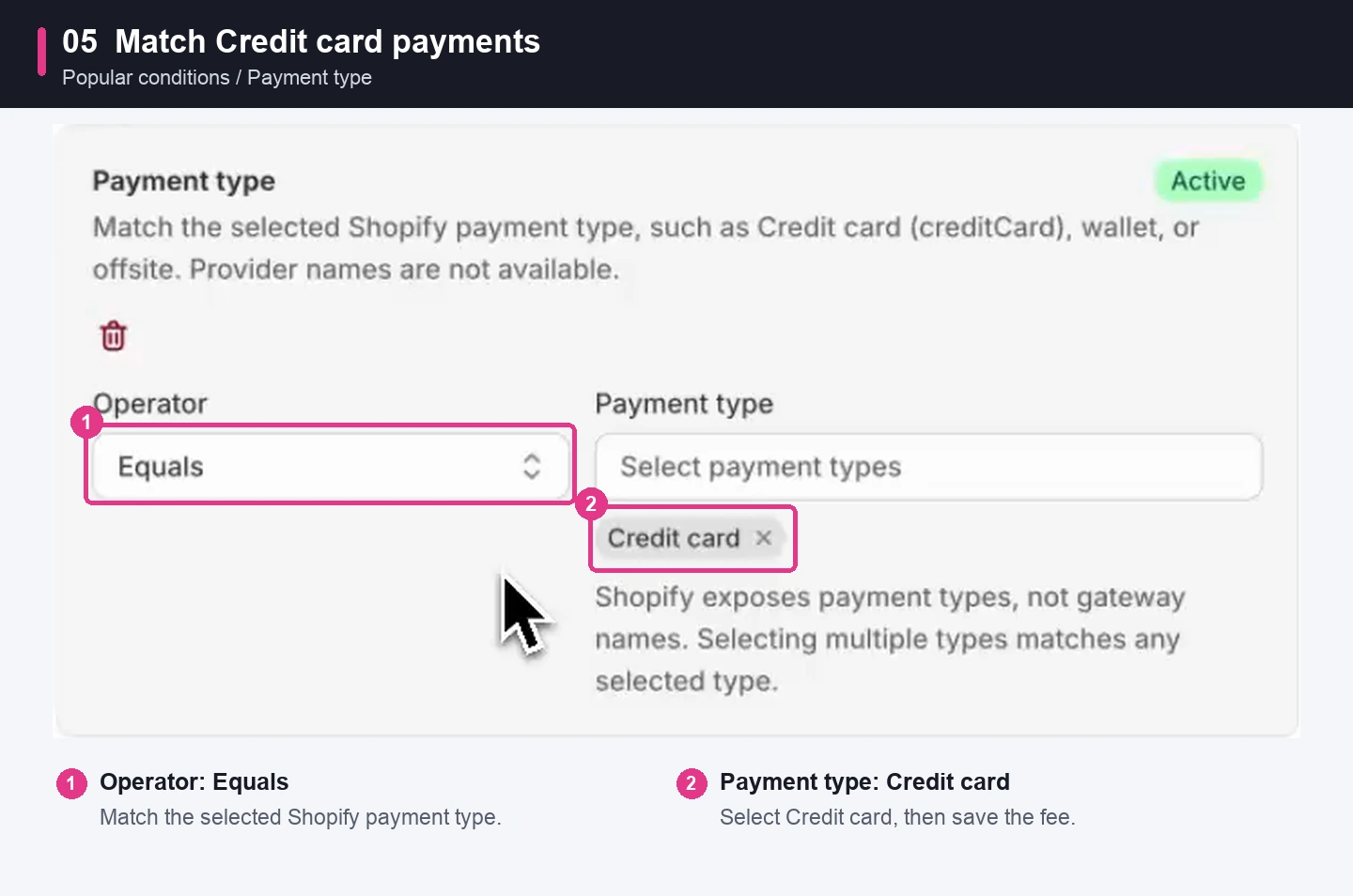
The condition matches Shopify's selected payment category, rather than a specific gateway name or card network.
Check that the fee's Status is Active, then click Save.
Step 6: Open your Checkout Editor
Next, open Shopify Admin → Settings → Checkout. In Configurations, open the active checkout configuration using Edit or Customize, depending on the label shown in your admin.
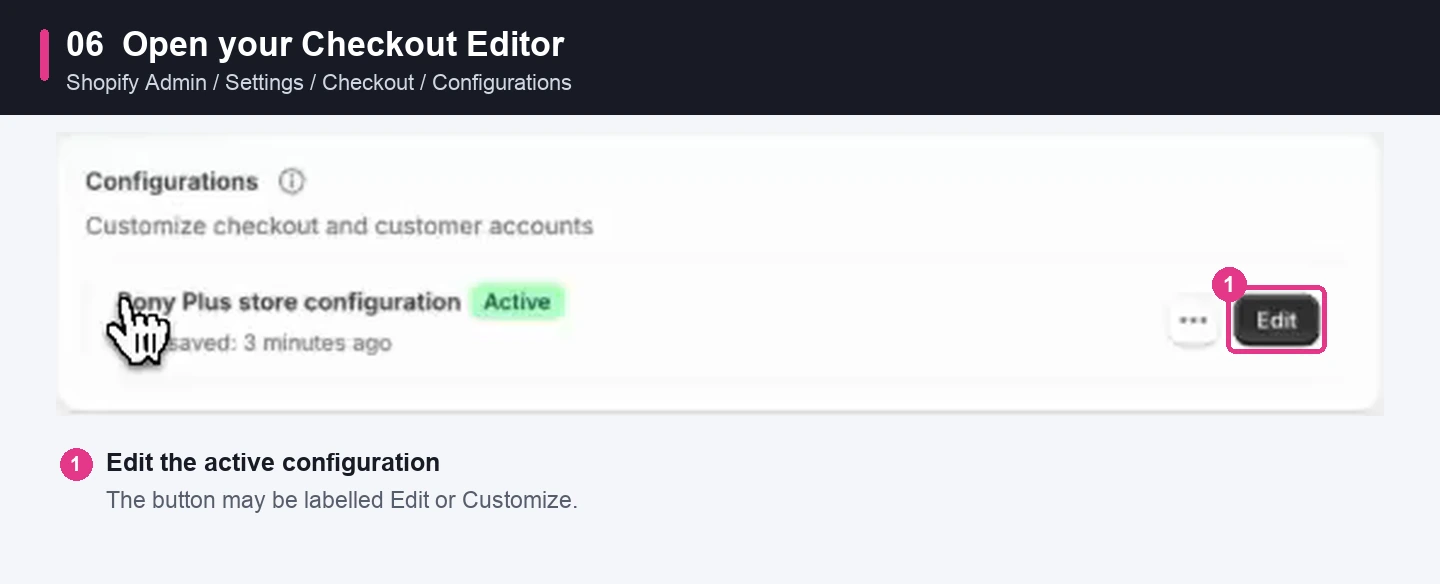
Make sure you edit the configuration your storefront uses.
Step 7: Add Bony Order Fees and save
In the Checkout Editor:
- Find Order summary in the sidebar.
- Click Add block.
- Select Bony Order Fees under Bony Fees & Surcharges.
- Click Save to save the checkout configuration.
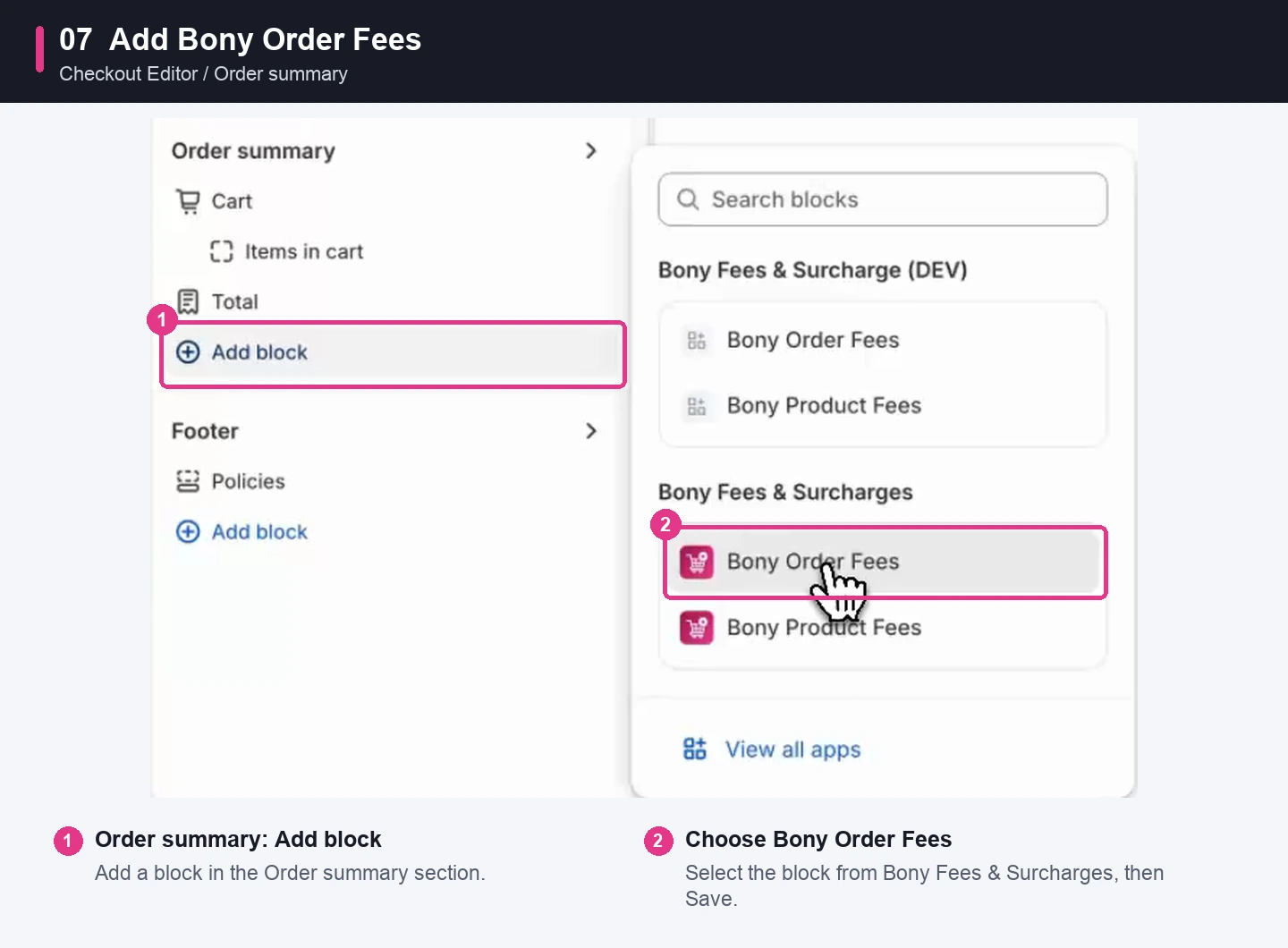
For this Order fee walkthrough, choose the Bony Order Fees block.
You have now saved both parts of the setup: the fee rule in Bony and the app block in Shopify's Checkout Editor.
Step 8: Test the fee on your storefront
Open your storefront, add a product to the cart, and proceed to checkout.
Select Credit card, then check the order summary. In the video, the result is:
| Item | Recorded amount |
|---|---|
| Product | $21.99 |
| Credit card fee at 2.7%, rounded to cents | $0.59 |
| Displayed total before shipping and tax | $22.58 |
Now switch to another available payment method. The recording uses Cash on Delivery (COD): the credit card fee disappears and the displayed total returns to $21.99. Select Credit card again and confirm the fee returns.
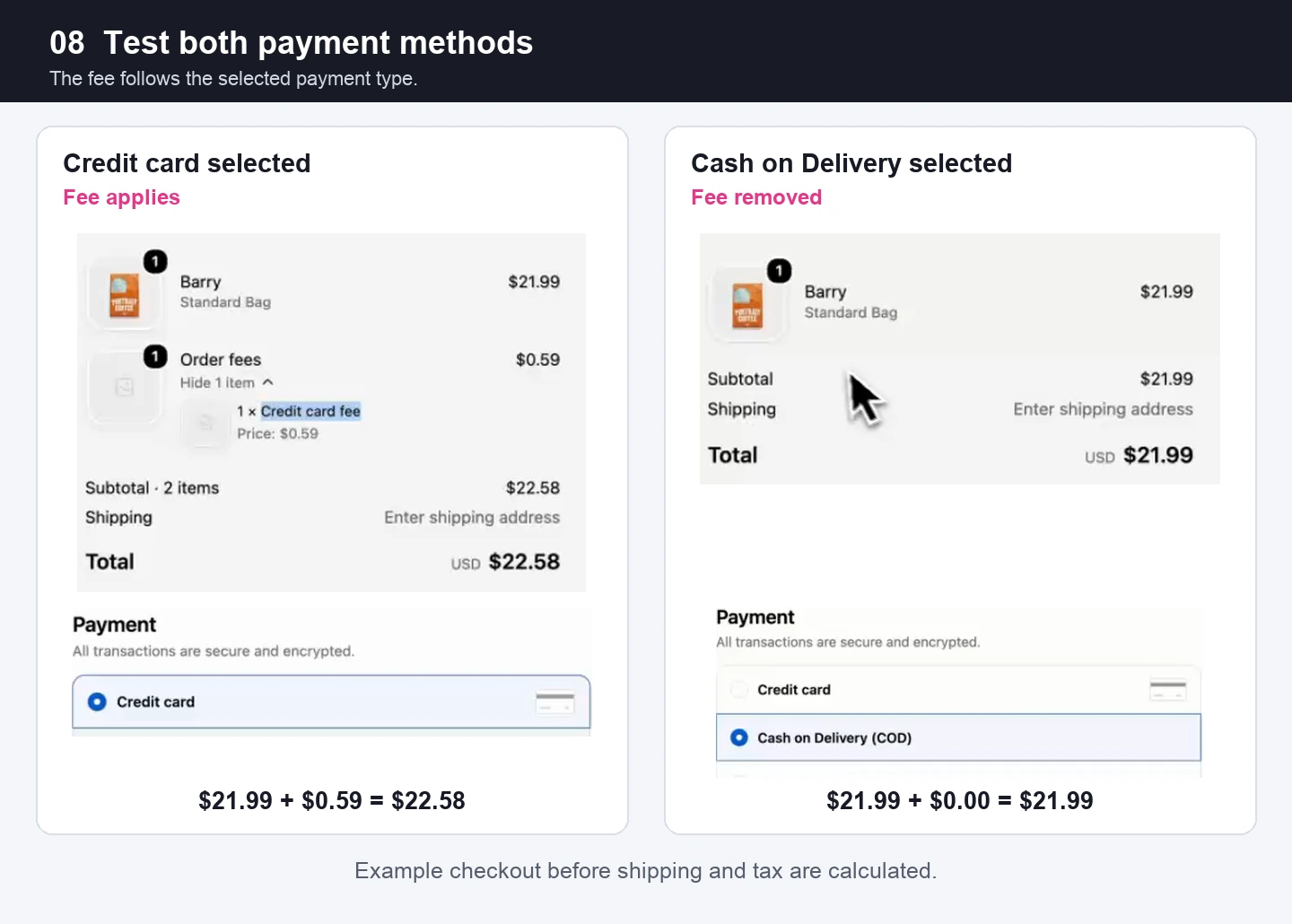
Both screenshots show the same test product before shipping and tax are calculated.
Finish testing with the shipping address, discounts, currencies, and payment options your store actually uses. Check that the fee label and final payable total are clear before payment.
If the fee does not appear
Review these settings first:
- The fee is saved and its Status is Active.
- Shopify Checkout (Plus only) is enabled.
- Display as is Hidden (automatic).
- The Payment type condition is Equals → Credit card.
- Bony Order Fees is added to the correct checkout configuration and the configuration is saved.
- The shopper has selected Credit card in the checkout you are testing.
If the fee remains on another payment method, recheck the saved condition and test again in a fresh checkout. Contact Bony through the app's support option if the result still differs from your rule.
Frequently asked questions
Can I use this setup without Shopify Plus?
This walkthrough requires Shopify Plus because it uses the Shopify Checkout channel and a Bony app block during checkout. Other Bony fee scenarios are separate from this payment-based setup.
Does Hidden (automatic) hide the fee from customers?
No. It removes the optional selection control. The fee still appears in the checkout order summary and contributes to the total when its conditions match.
Does the Credit card condition identify a specific gateway or card network?
No. It matches the payment category Shopify exposes. It does not select a gateway by name or establish whether an individual card transaction is eligible for a surcharge.
Do I need to use 2.7%?
No. The recording uses 2.7% to demonstrate a percentage fee. Set a rate that is permitted for your business and confirmed with your payment provider.
Configure your credit card fee with Bony
Install Bony Fees & Surcharge, then follow the steps above to create an Order fee and test it against your payment methods.
For other fee scenarios, see our guides to product fees on Shopify and Shopify handling fees.